About:
This is a collection of intuitive, context sensitive tools to improve productivity that I did to improve my workflow. These tools rely on mouse movement plus modifier keys to perform different actions without the need to use the UI or the dialogs.
They were developed and tested in 3DS Max 2015, while they should work on every newer version bugs may be experienced in different versions.
I hope you find these tools useful and they help improve your modeling experience.
Download:
Installation:
Go to your 3ds Max preferences folder and extract everything inside your ENU folder.
Here’s the root of the folder:
C:\Users\*Your-User-Name*\AppData\Local\Autodesk\3dsMax\*Your 3ds Max Version*\ENU\
Restart Max.
Usage:
Inside Max go into Customize -> Customize User Interface and assign the macros to a hotkey or a menu. The scripts can be found under the category "Maxivz".
Documentation
Interactive Primitives:
These tools allow you to create the most used primitives in a quick
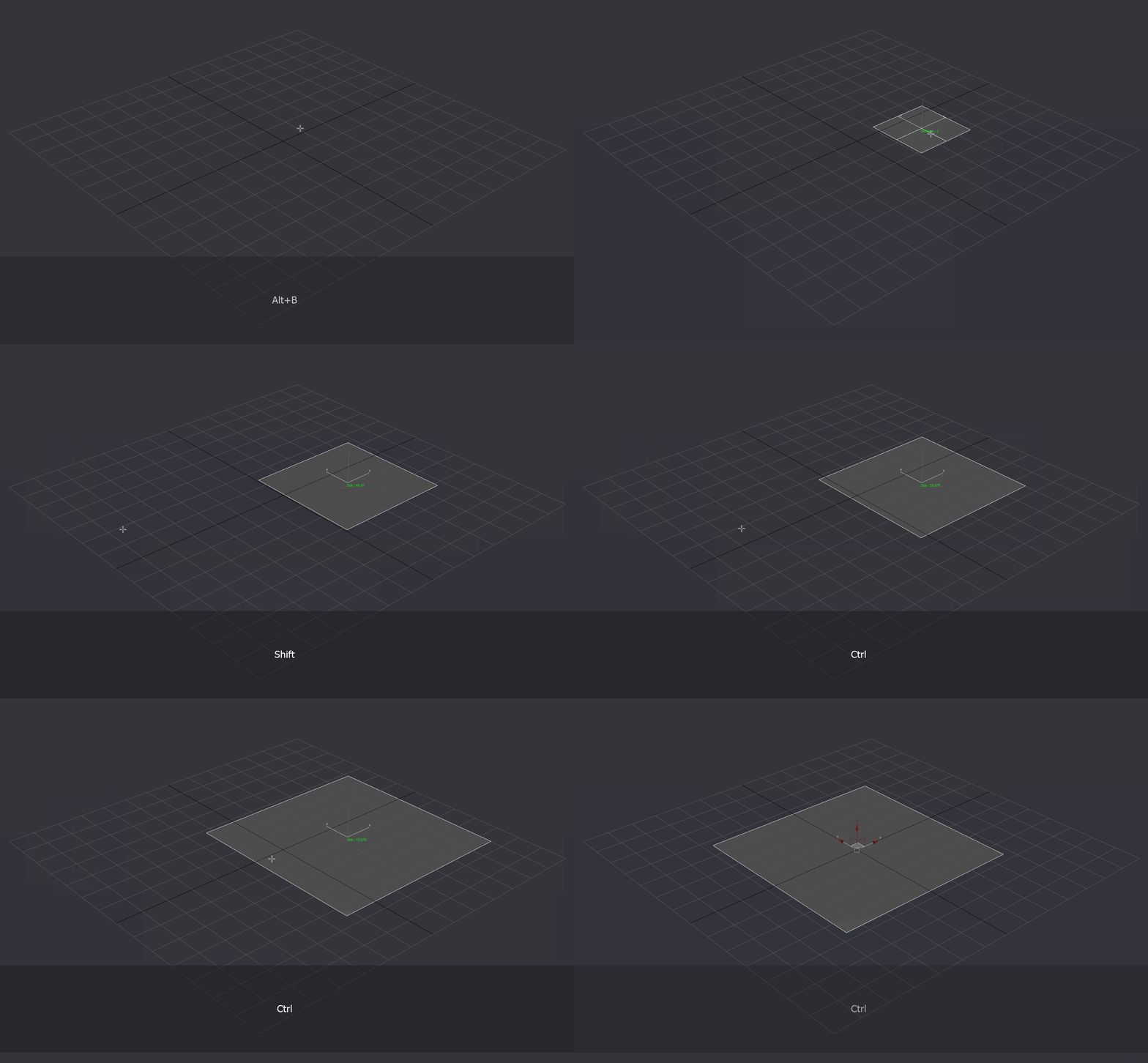
Plane:
None: Divisions
Alt: -
Ctrl: Size
Shift: Size (lower increment)
Alt+ Ctrl + Click: Align to axis
First Left Click: Place object
Left Click: Accept
Right Click: Cancel
Box:
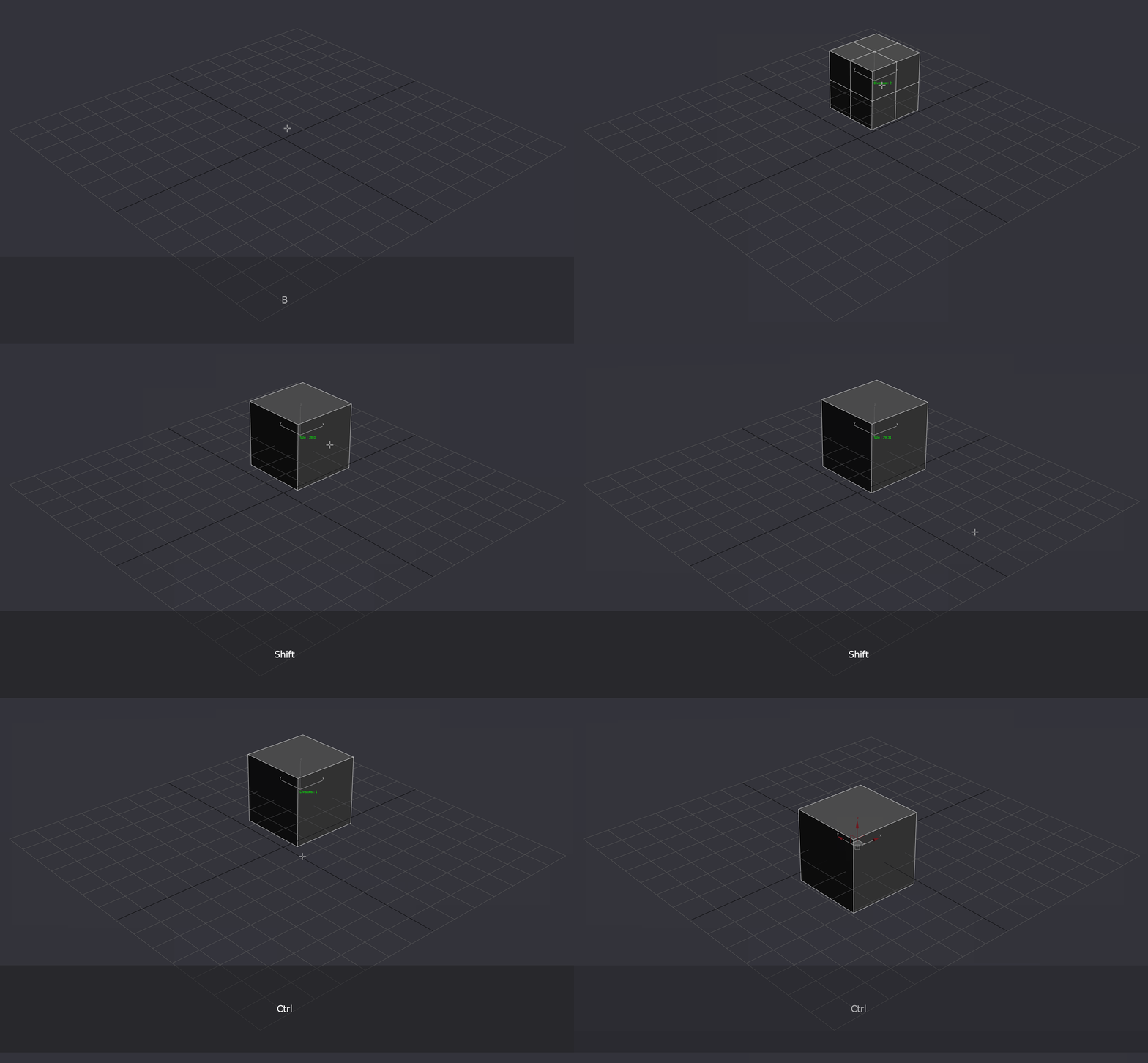
None: Divisions
Alt: -
Ctrl: Size
Shift: Size (lower increment)
Alt+ Ctrl + Click: Align to axis
First Left Click: Place object
Left Click: Accept
Right Click: Cancel
Cylinder:
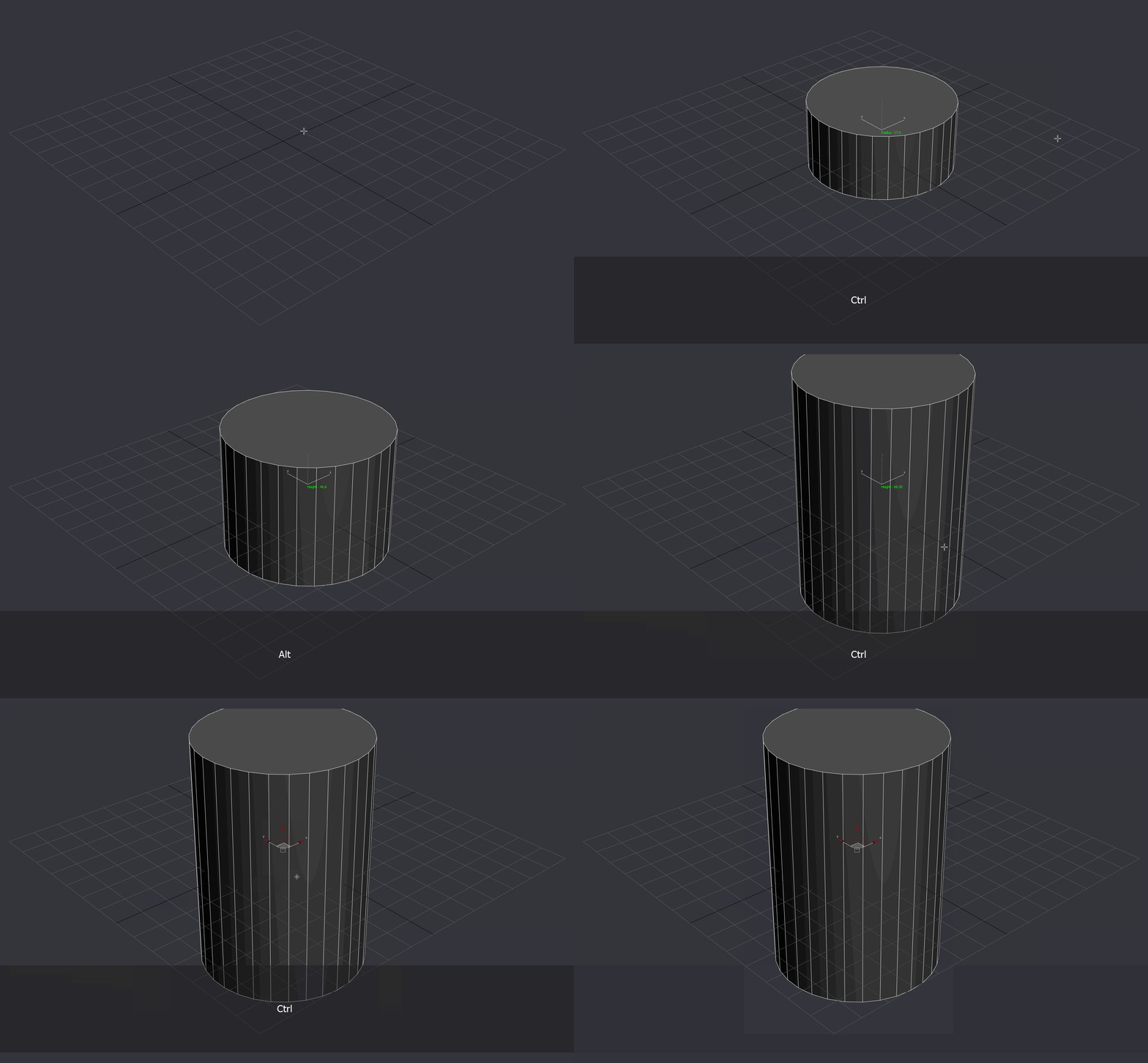
None: Segments +1
Alt: Height
Ctrl: Radius
Shift: Segments +2
Alt+ Ctrl + Click: Align to axis
First Left Click: Place Obj
Left Click: Accept
Right Click: Cancel
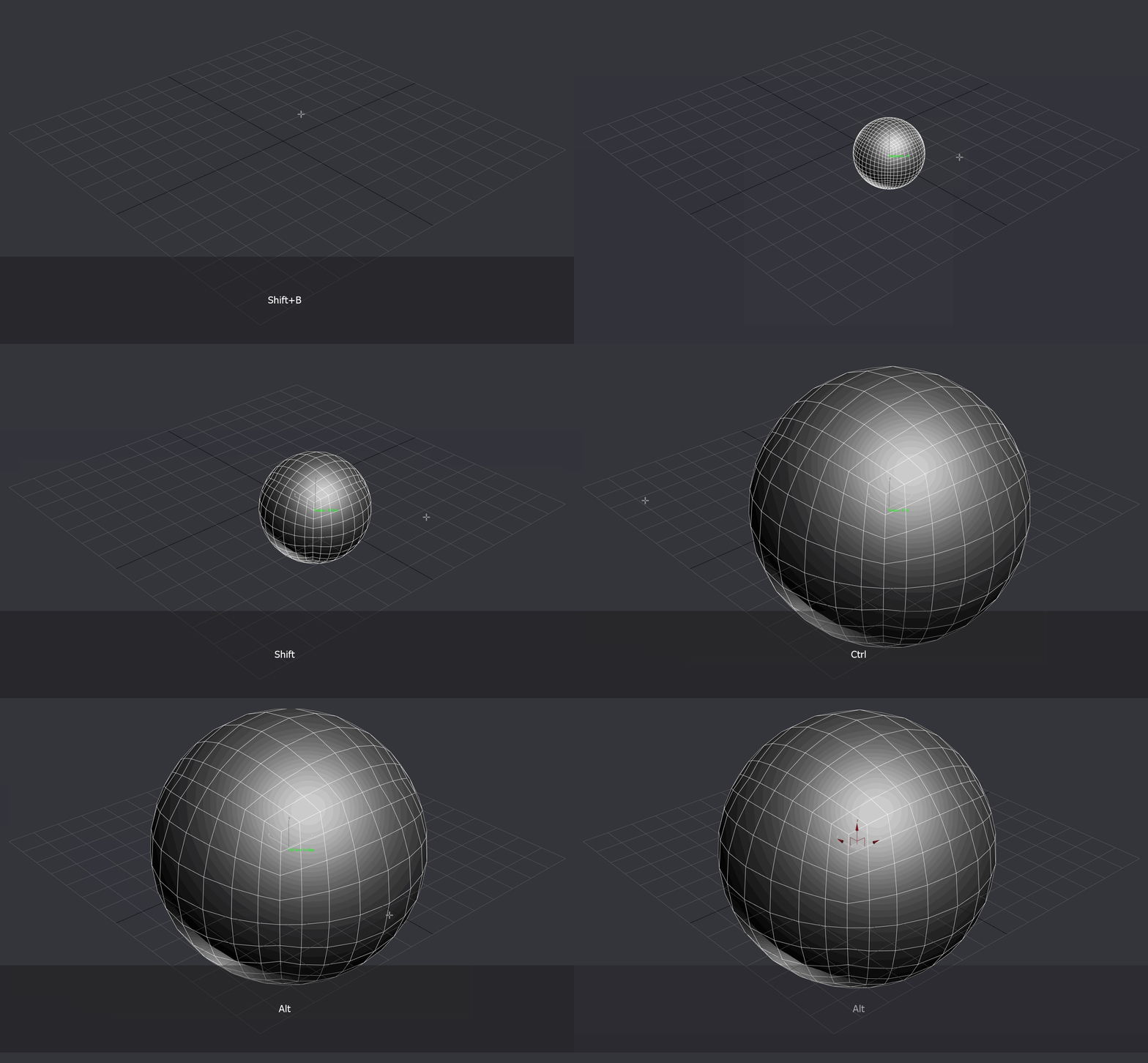
QuadSphere:
None: Segments
Ctrl: Size
Shift: Slower Size
Alt+ Ctrl + Click: Align to axis
First Left Click: Place Obj
Left Click: Accept
Right Click: Cancel
Context Sensitive Tools:
Context Sensitive Bevel:
Calls my interactive chamfer if its in vertex, edge or borer mode. If it is in the face or element mode it will call the face bevel script.
If you select an edge or vert on an editable spline it will start the fillet tool. A click is required afterwards to active it.
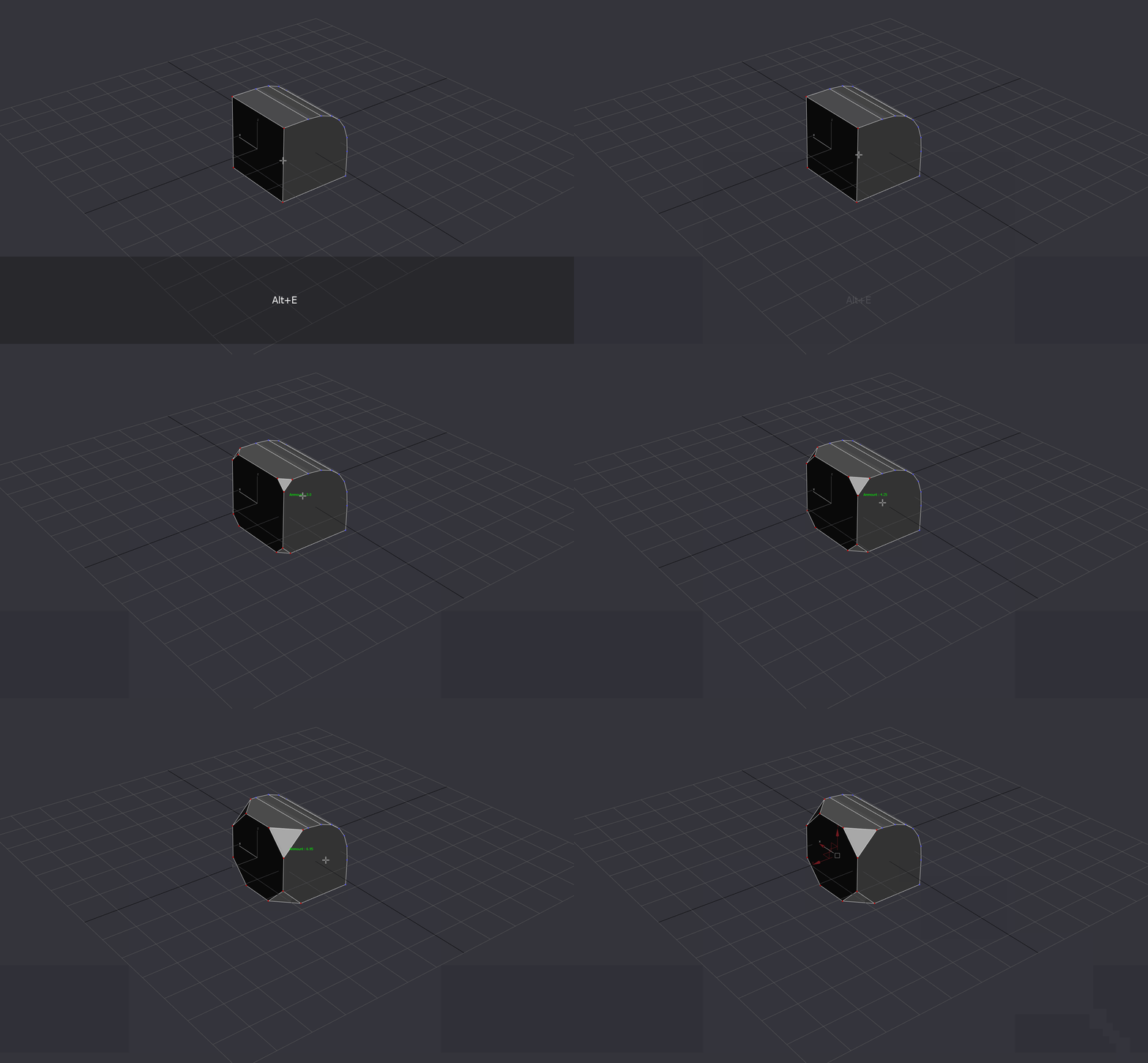
Interactive Vert Chamfer:
None: Amount
Ctrl: -
Shift: Amount, slower increase
Alt: -
First Left Click: Start Tool
Left Click: Accept
Right Click: Cancel
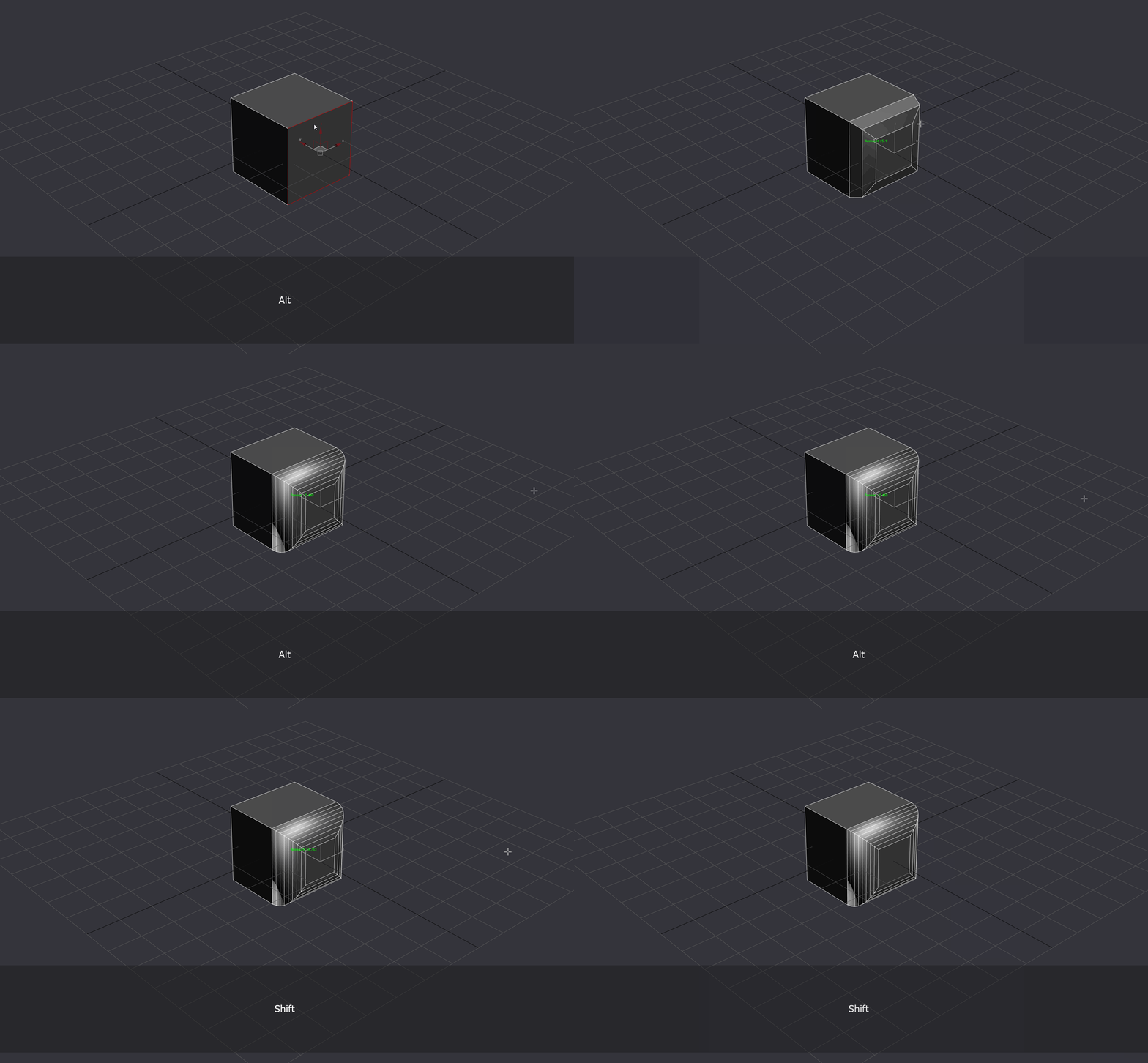
Interactive Edge Chamfer:
None: Amount
Ctrl: Segments
Shift: Amount, slower increase
Alt: Tension
First Left Click: Start Tool
Left Click: Accept
Right Click: Cancel
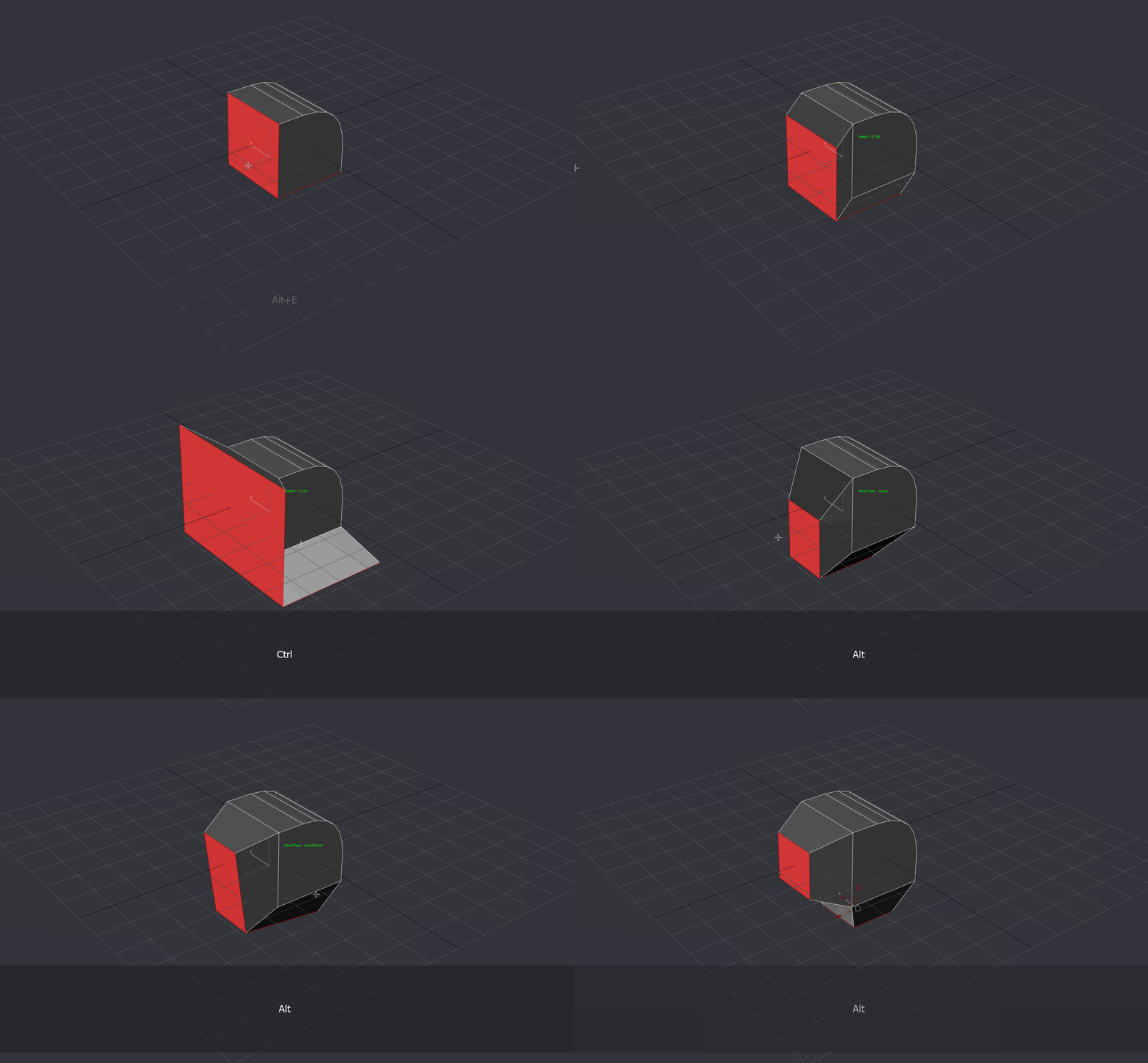
Interactive Face Bevel
None: Height
Ctrl: Inset
Ctrl Shift: Inset, slower increase, snaps to 0 if value is < 0.2
Shift: Extrude slower increase, snaps to 0 if value is < 0.2
Alt: Modes
First Left Click: Start Tool
Left Click: Accept
Right Click: Cancel
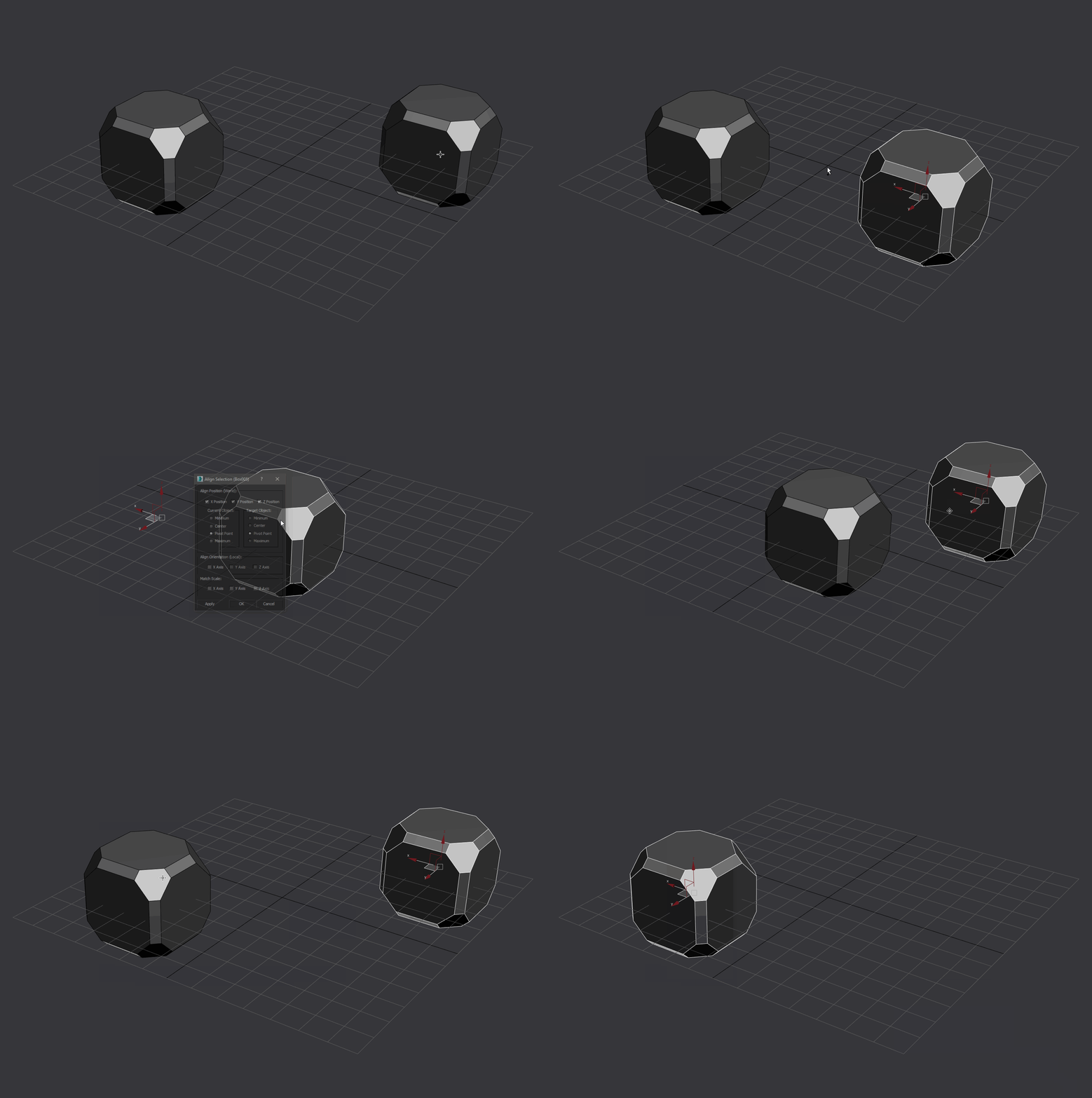
Smart Align:
Works based on what's under your cursor when you run it. If you are close to an Axis It will center it to that axis. If there's an object under your cursor you can click it and the Align Dialog will pop up
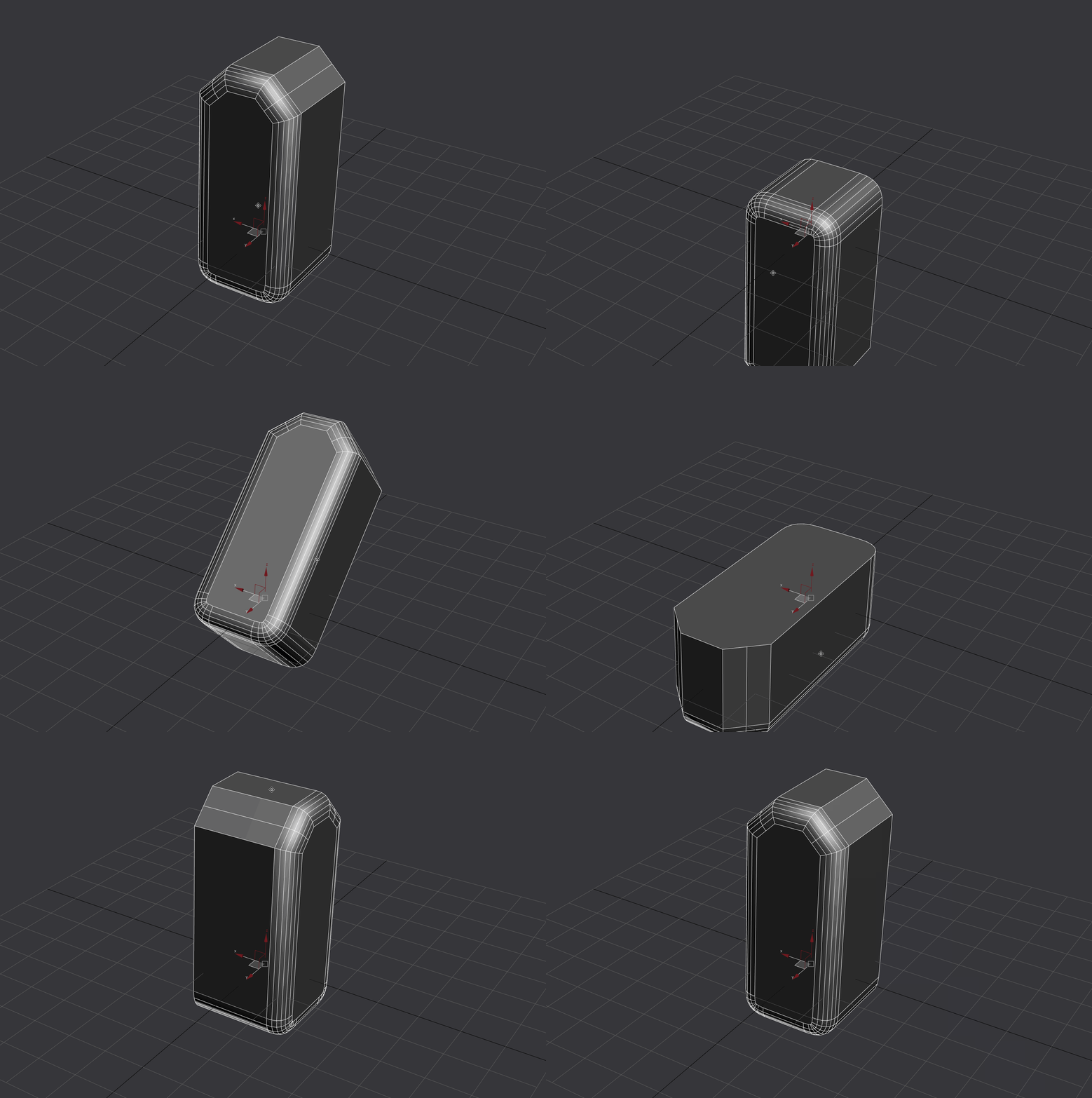
Smart Rotate (Positive and Negative):
Works based on the direction of the normal under your cursor, rotating the object 45 degrees in the plane the object normal is pointing at. Only works for the X,Y and Z Plane
Interactive Modifiers
These tools allow you to intuitively add modifiers to meshes. Once a modifier has been added to a mesh you can modify it by running the script again with the object selected
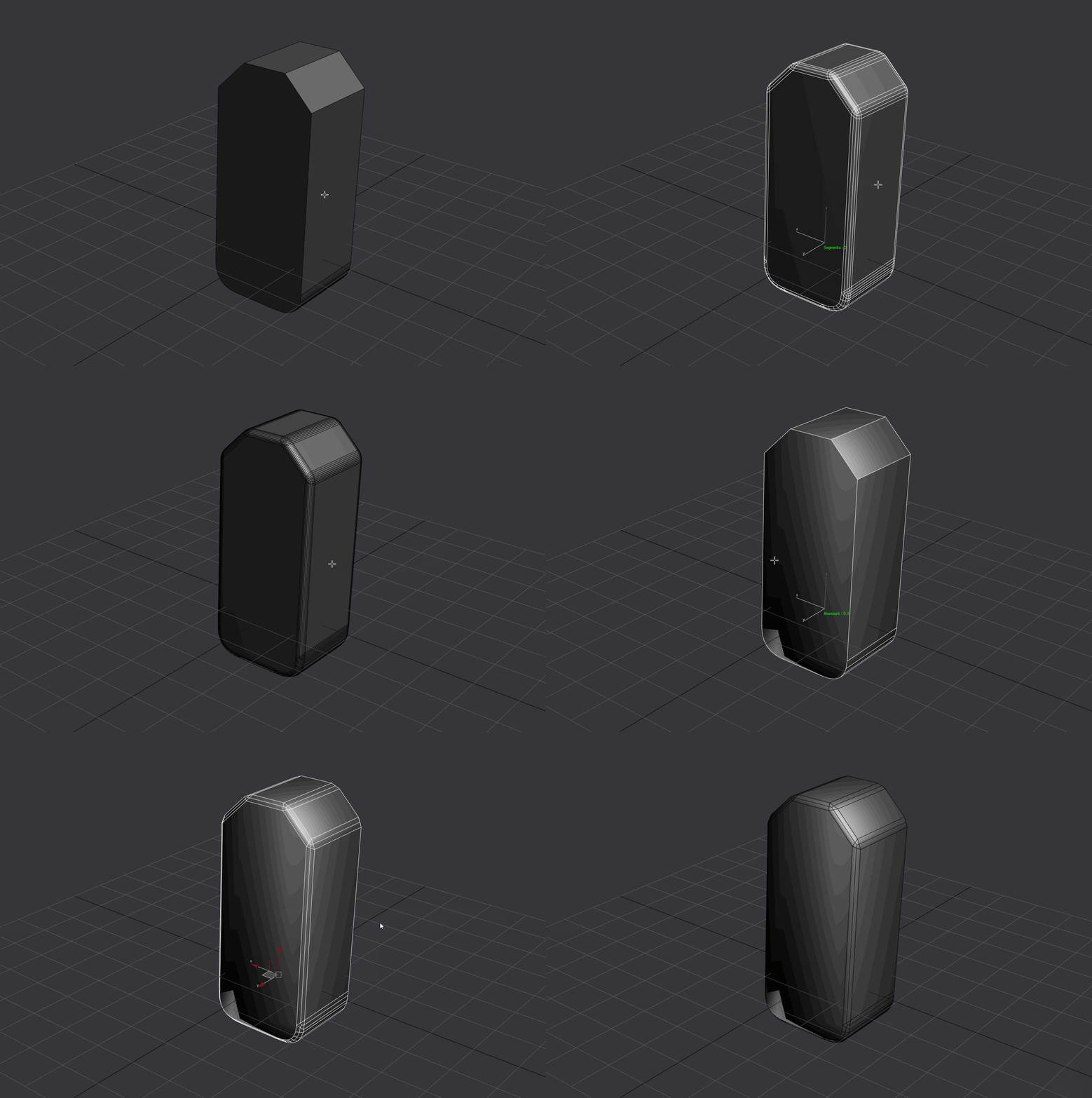
Interactive Quad Chamfer Modifier:
Note: This requires the Quad Chamfer Modifier by Marius in order to work, this is just an interface to make working with it easier, don't expect a quad chamfer modifier out of this without Marius tool.
None: Amount
Ctrl: Segments
Shift: Amount, slower increase
Alt: Tension
First Left Click: Start Tool
Left Click: Accept
Right Click: Cancel
You can edit the results if you run the script again as it controls the modifier
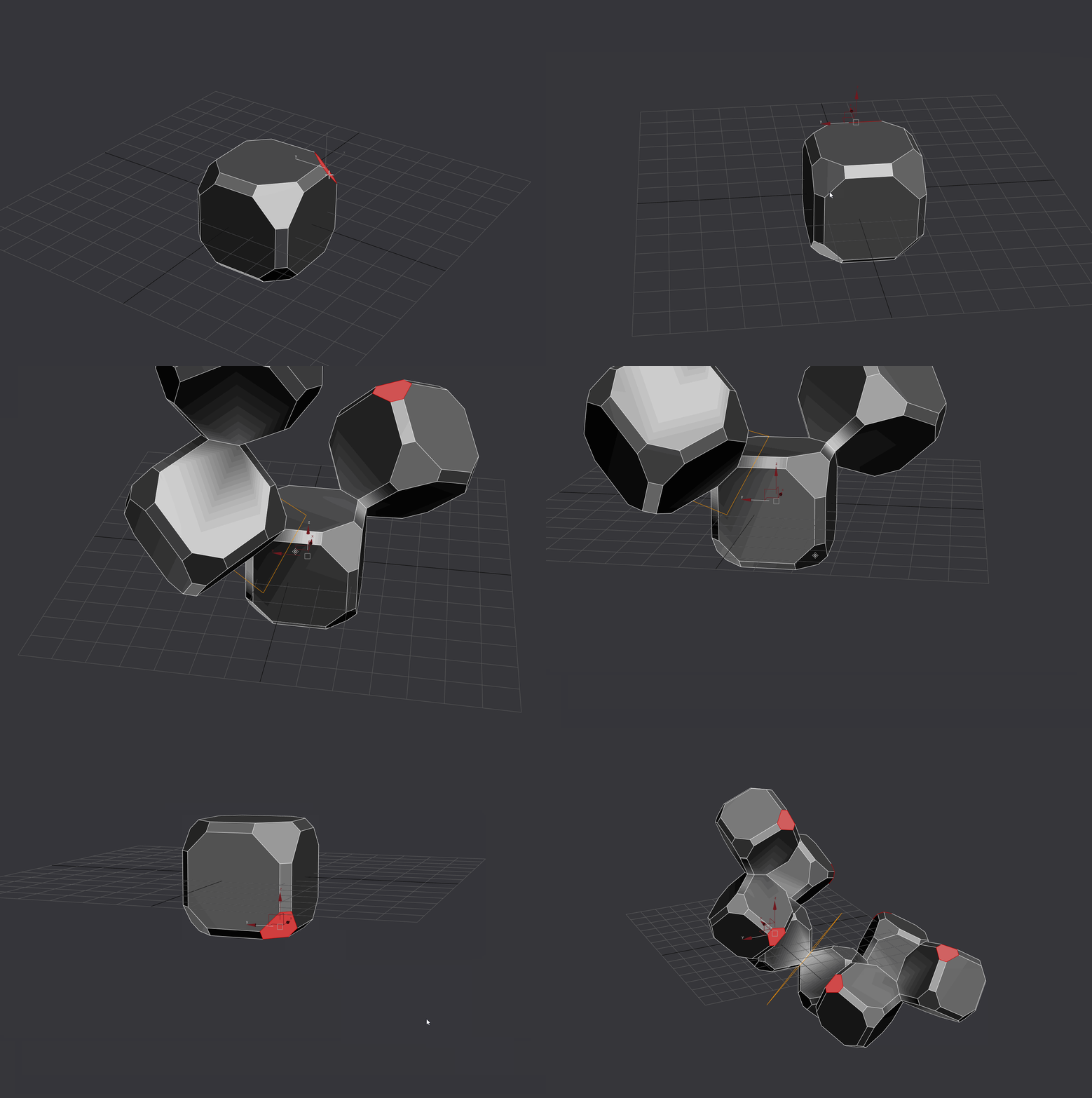
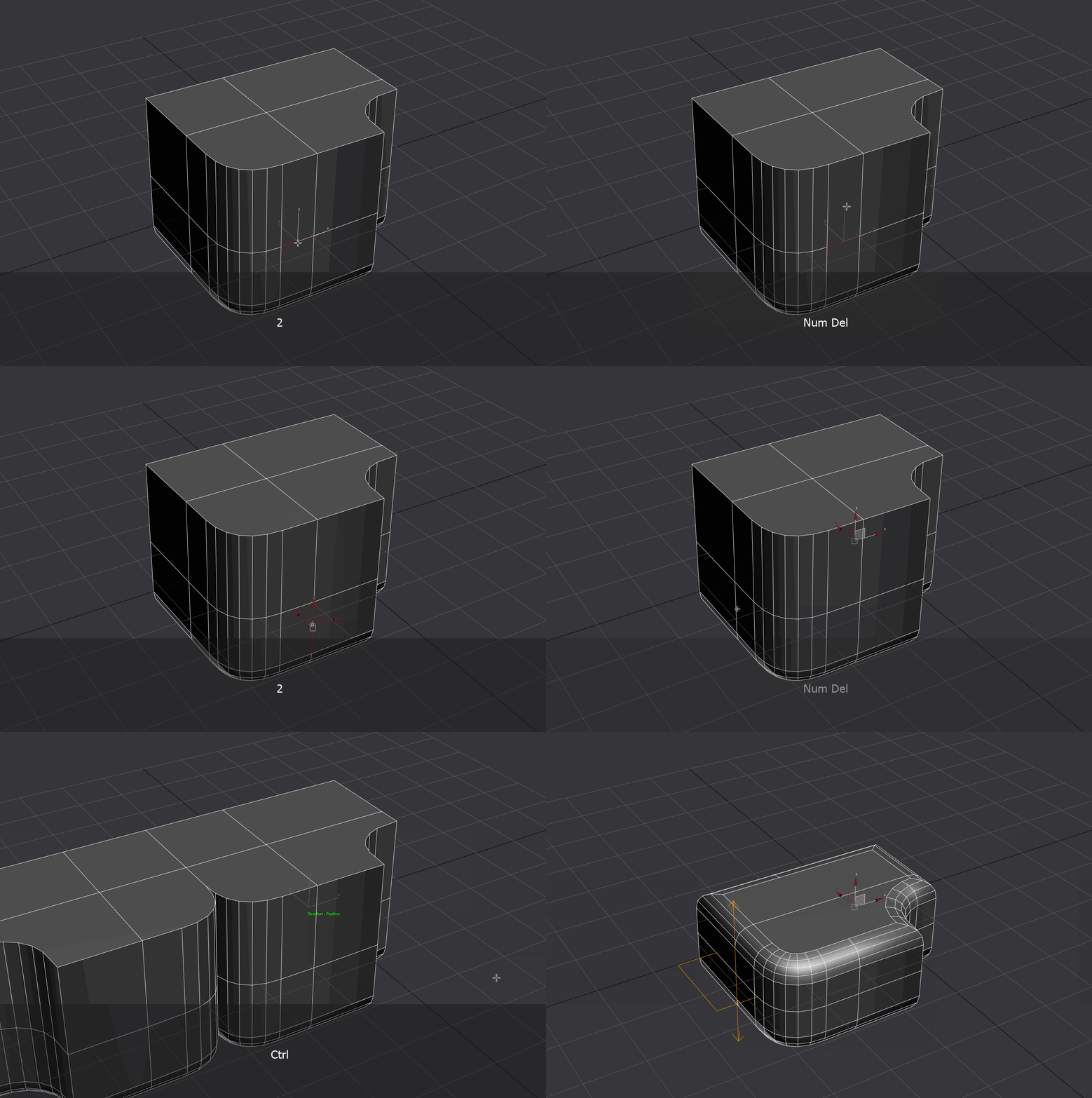
Interactive Symmetry Modifier:
How it works: If you select a face it will align the symmetry axis to the face normal. If you have an edge or vert selection it will try to guess the direction and plane of the symmetry based on the distance of the selection to a face you click in the object
None: Change Symmetry Axis
Ctrl: Change Direction of the symmetry
Left Click: Accept
Right Click: Cancel
You can edit the results if you run the script again as it controls the modifier
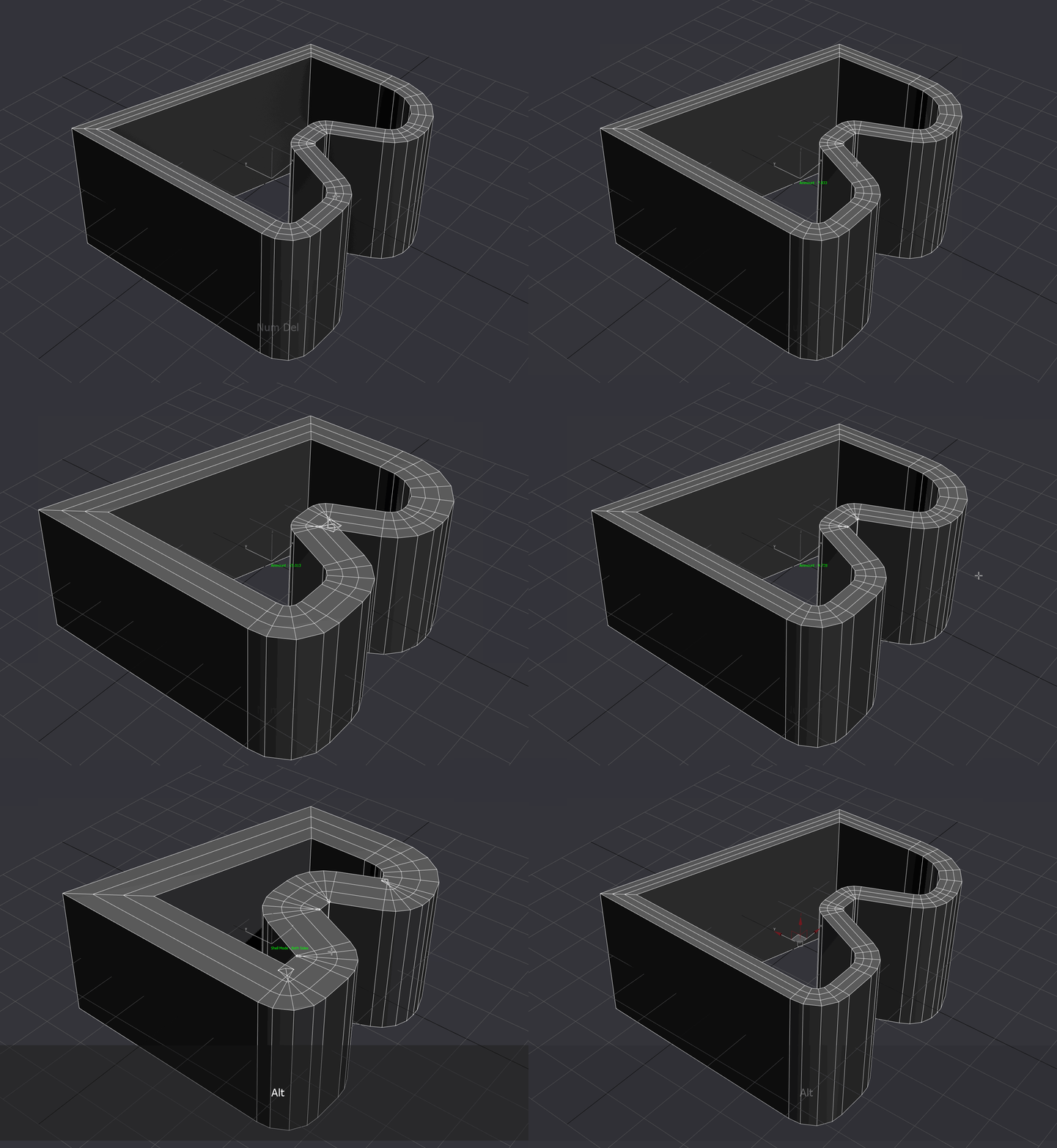
Interactive Shell Modifier:
None: Change Symmetry Axis
Shift: Slower Increment
Ctrl: Segments
Alt: Mode (Single/Double Sided)
Left Click: Accept
Right Click: Cancel
You can edit the results if you run the script again as it controls the modifier
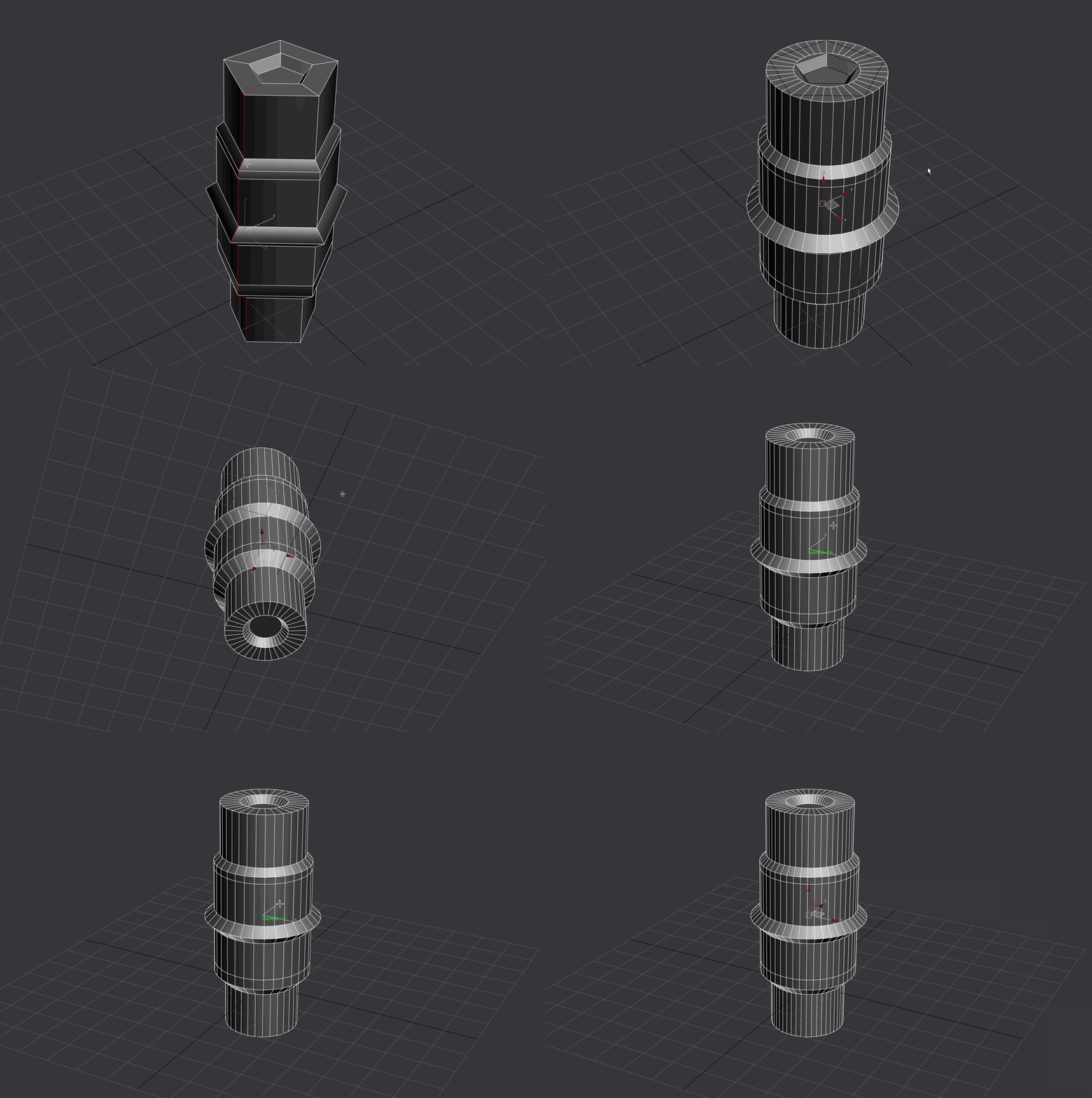
Interactive Set Cylindrical Sides:
Select a loop, run it and make a click to active the tool. It will try to guess the axis of the lathe for you.
Requires the pivot to be in the center of cylinder to produce good results.
None: Segments
Shift: Segments + 2
Alt: Change Axis
Left Click: Accept
Right Click: Cancel
You can edit the results if you run the script again as it controls the modifier
Utilities:
These are a collection of useful macros that help speed up the workflow.
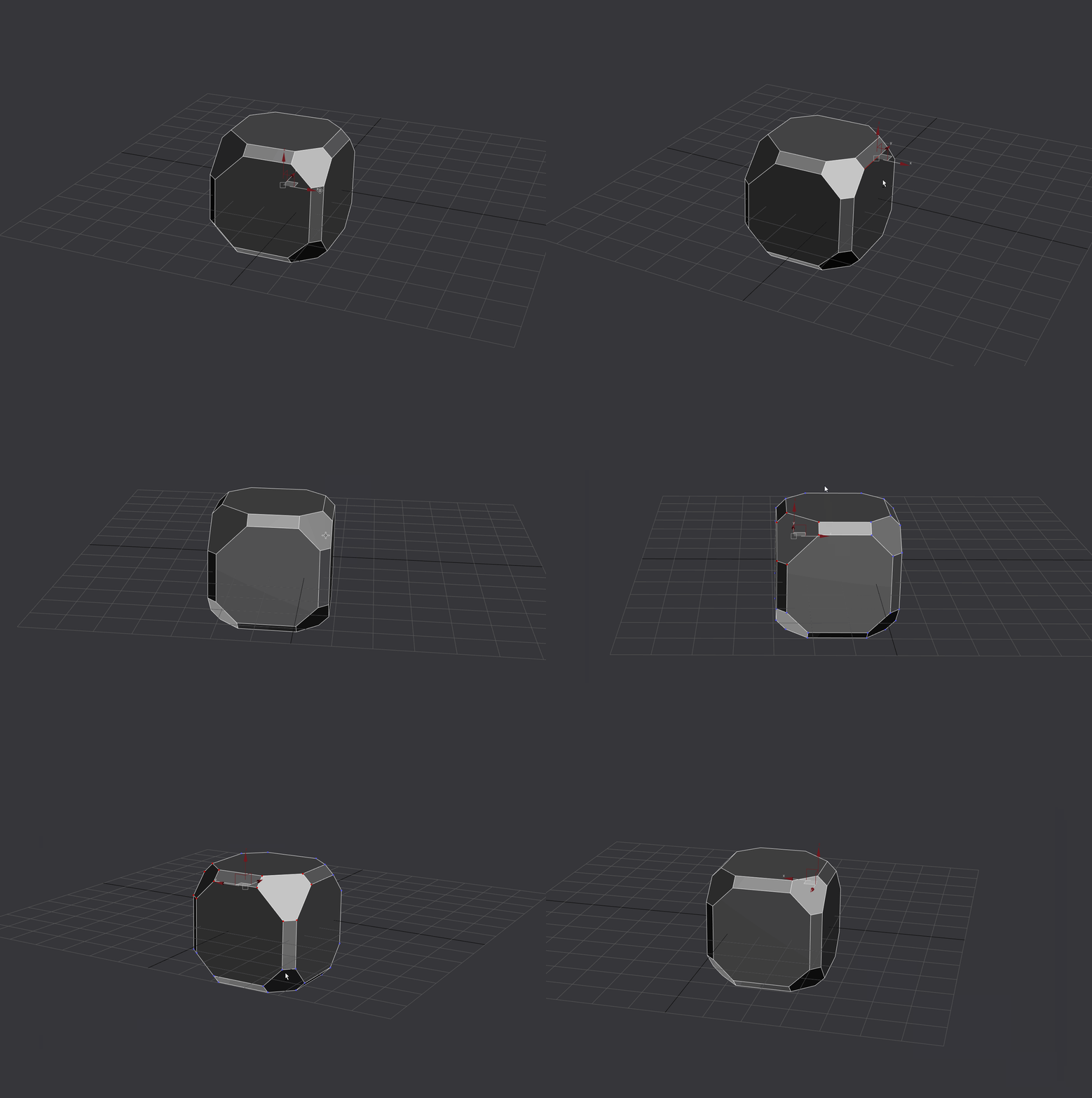
Smart Pivot:
Make a selection and run it, it will center the pivot to your selection.
Fix Fucked Meshes:
Combination of to mesh, to poly and resetXform modifier combined in one macro to quickly fix your mesh.
Paint Selection Mode:
Switches between paint selection with ignore backfacing on and square selection without ignore backfacing.