GameChanger for Scorekeepers
Contact: David Spence / uic@beaconhillball.com / 778-677-3722 for any questions or issues.
A printed version of this document is in the binder above the wall mounted iPad.
Before the game
Get the Equipment
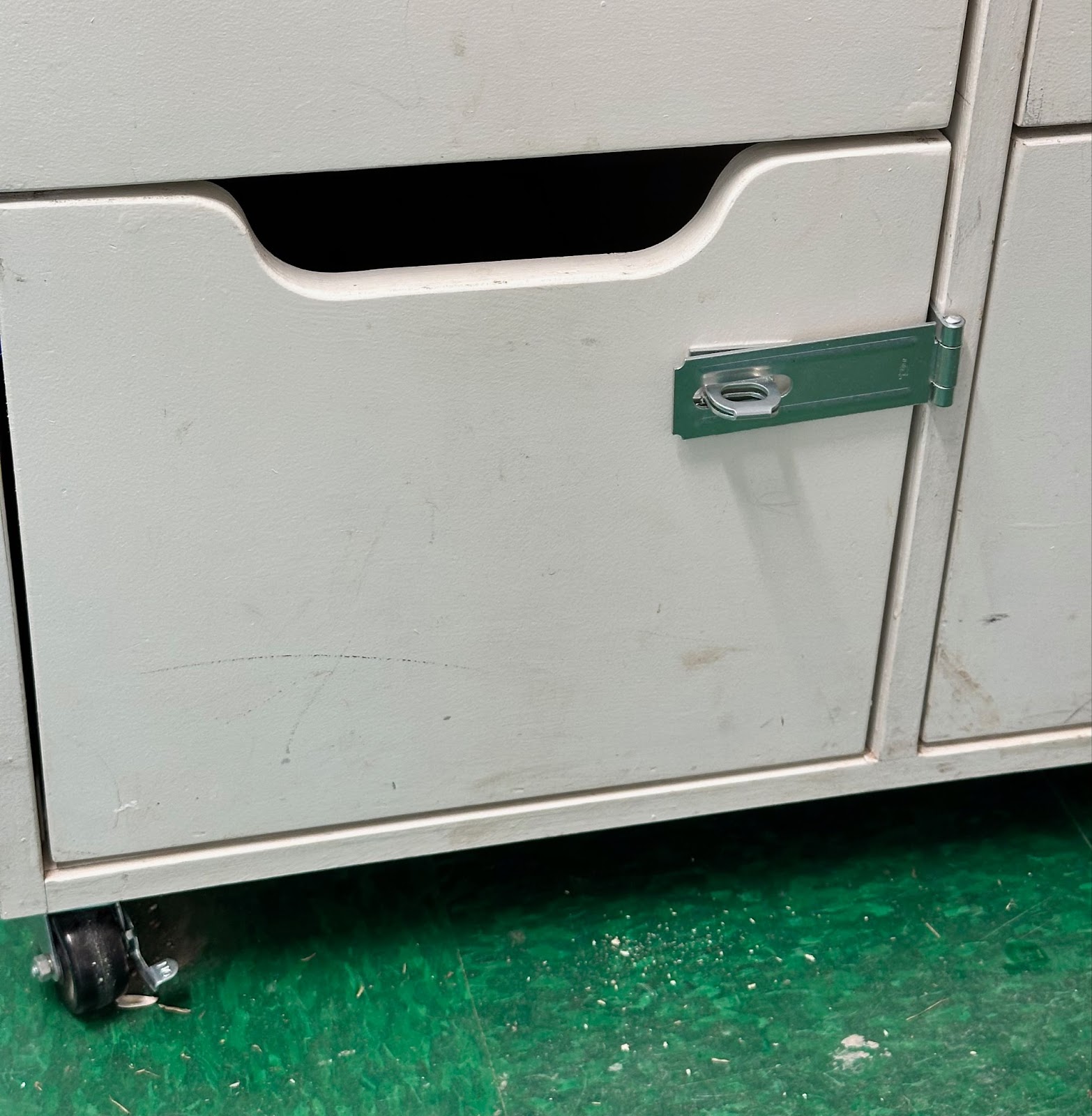
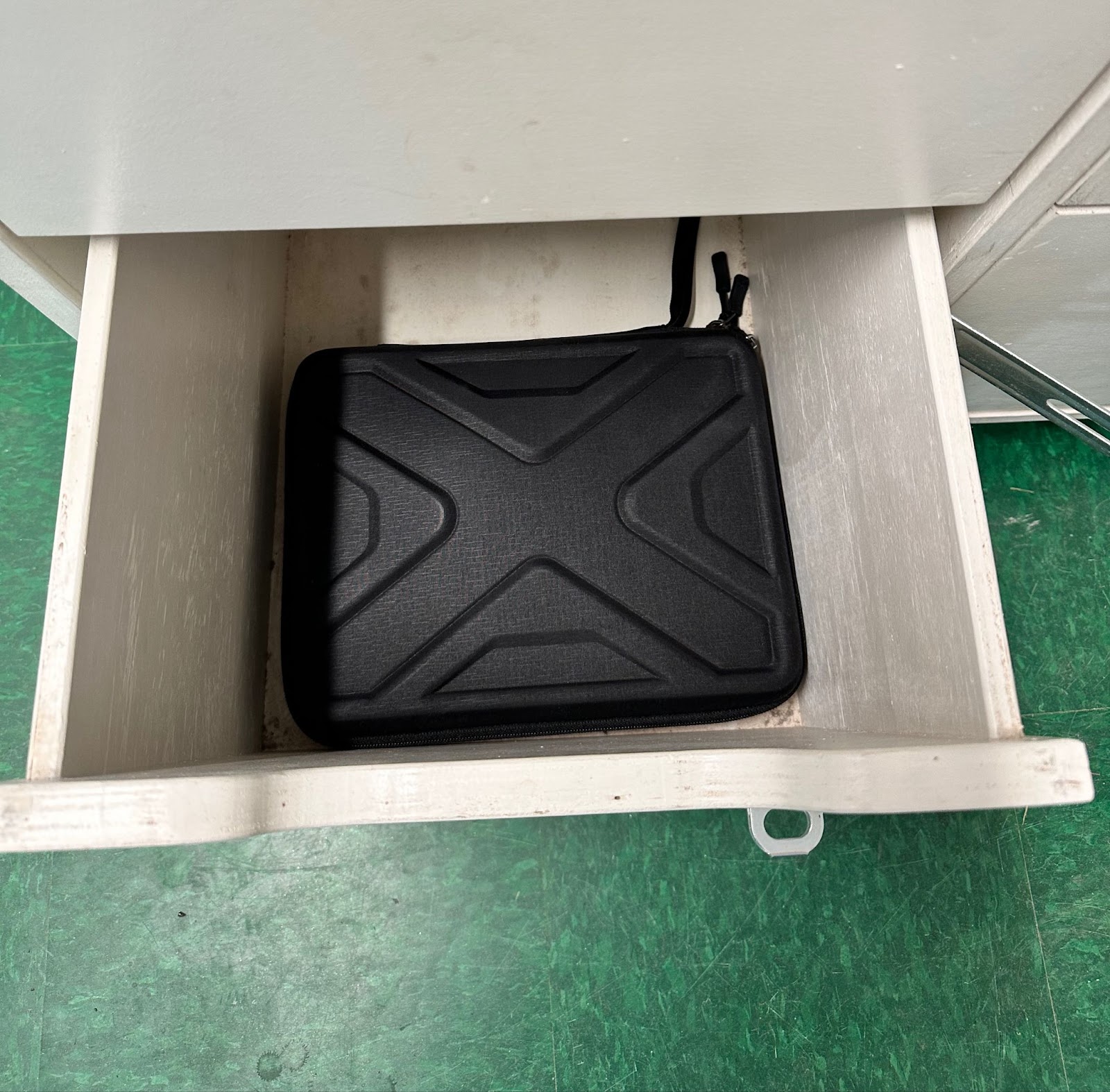
In the umpire room, unlock the drawer (lock code ______ ) and remove the scorekeeping iPad and Camera from the case.
Setup The Scorekeeping iPad:
Unlock the Scorekeeper iPad with code ______
Open the GC app (if you need to log back into the GC app:
username: uic@beaconhillball.com / password: _____________________________

IMPORTANT:
If you are setting up to score a Beacon Hill vs Beacon Hill game follow the steps below
If you are setting up to score an Interlock game, ie Beacon Hill vs a team from another league, go to Setup an Interlock Game on page 4
Setup Beacon Hill vs Beacon Hill:
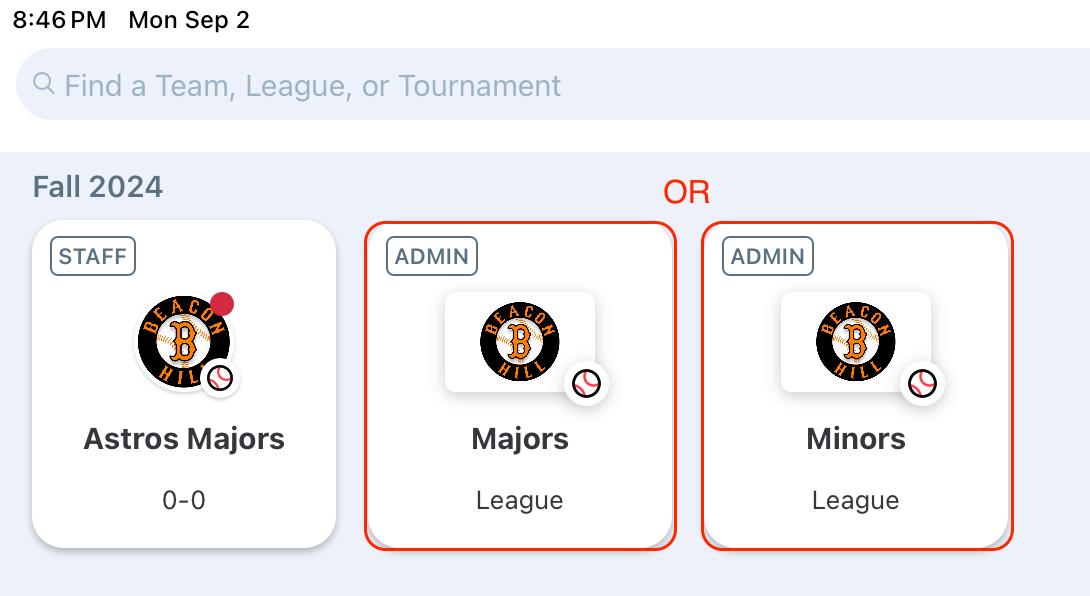
In the correct season (Fall 2024, Spring 2025, etc) section click on Majors League or Minors League depending in which division you want to access
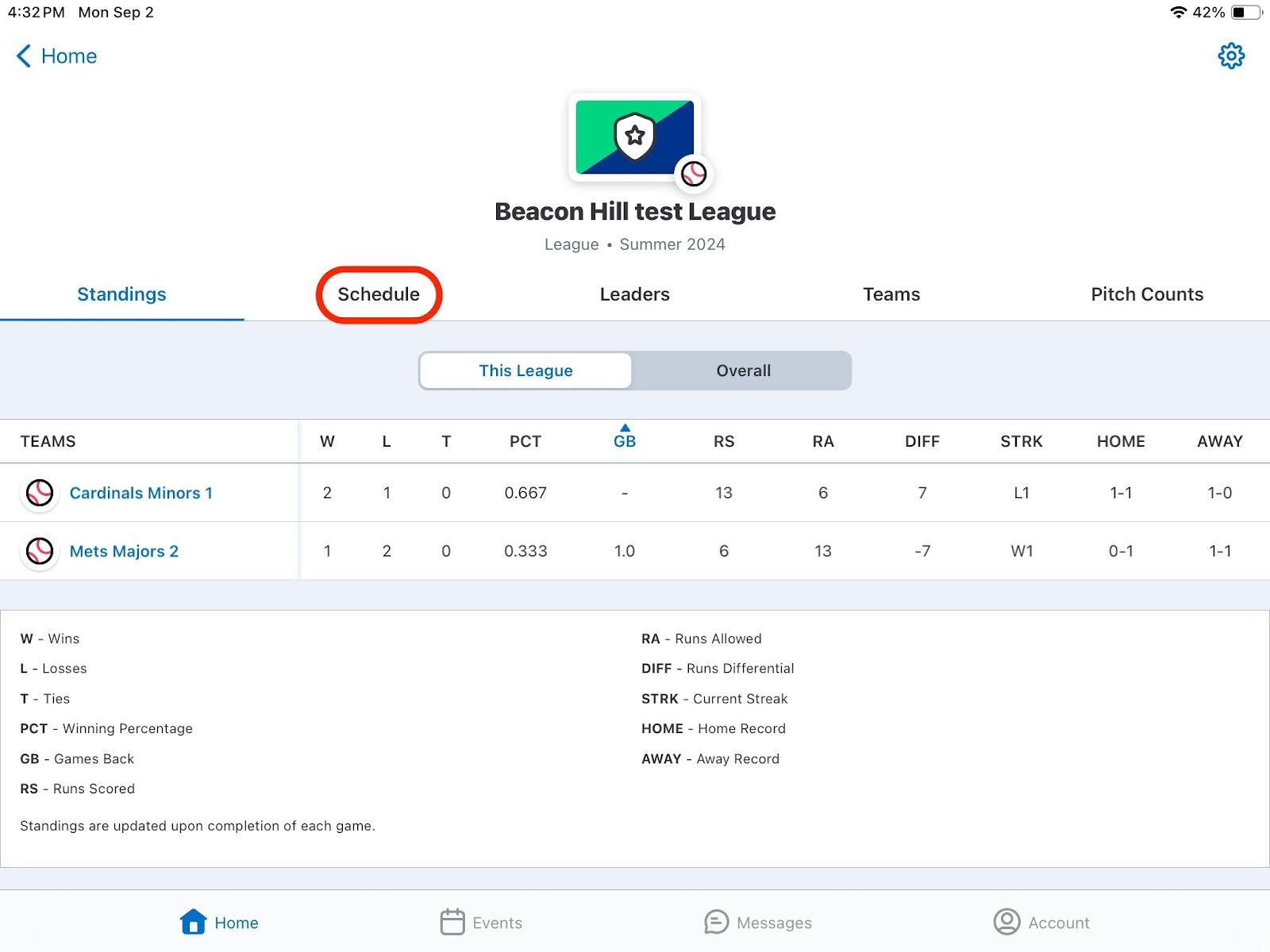
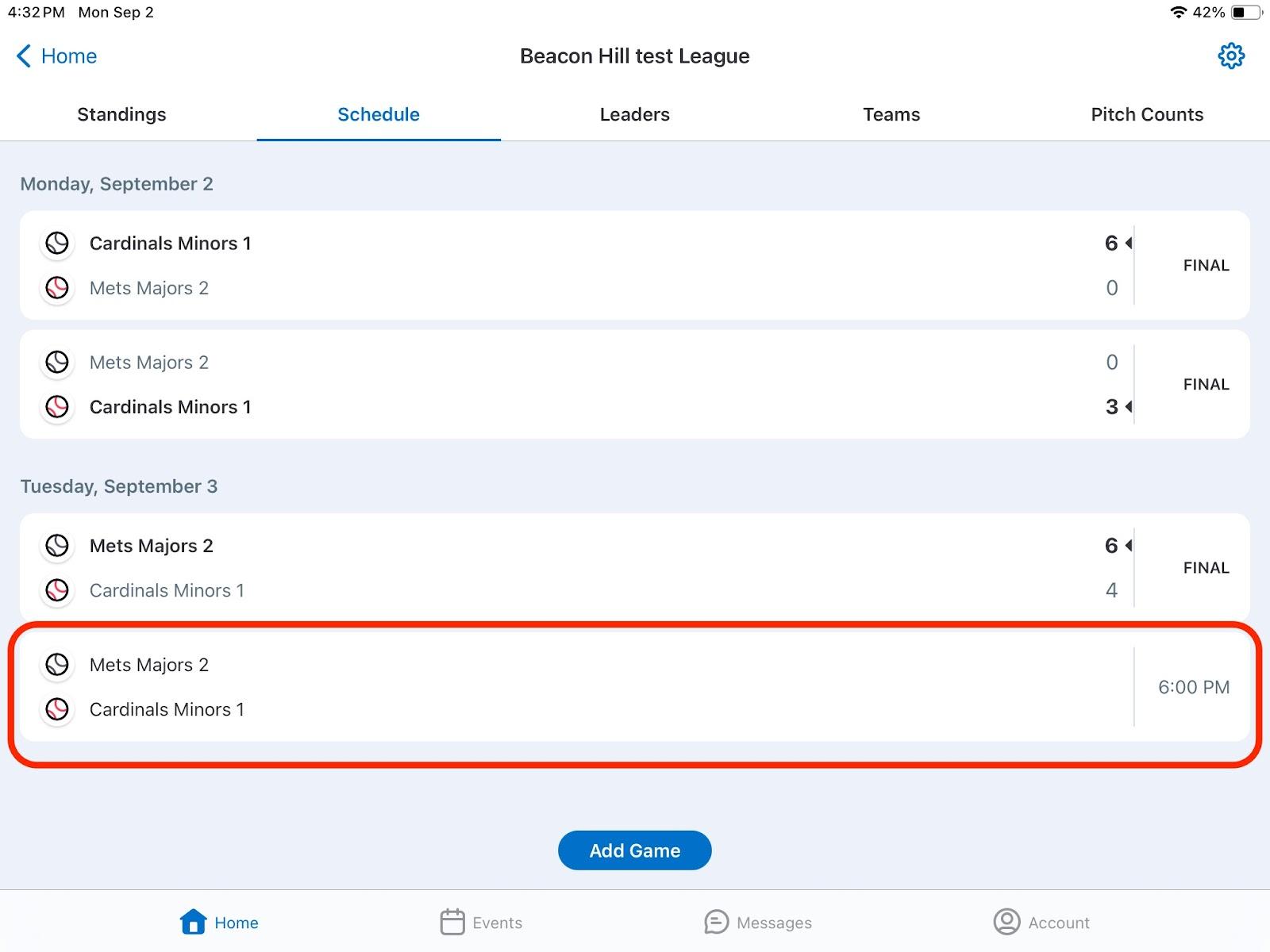
Click on Schedule (note DO NOT click on Events and start scoring the game from there)
Click on the game you want to scorekeep
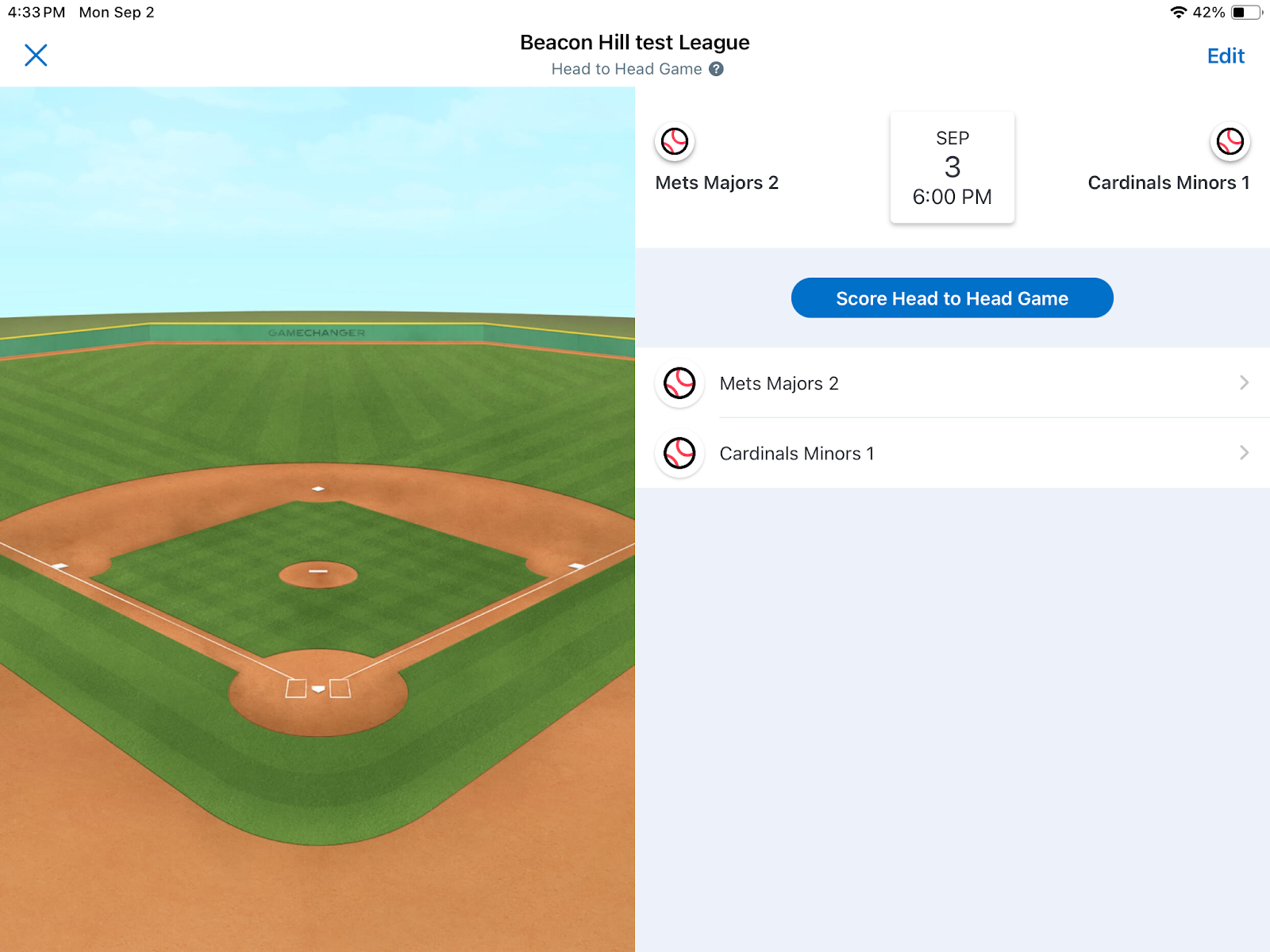
Click Score Head to Head Game
Now Skip to page 8.
Setup an Interlock game (ie BH vs another league team)
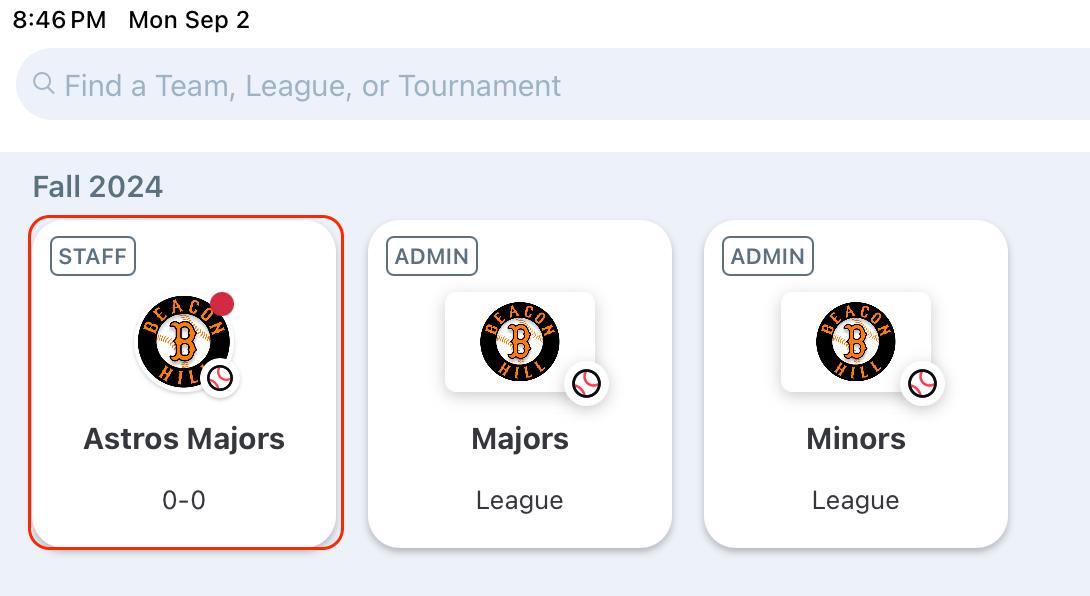
Click on the BH Team you want to scorekeep (do not click on the League buttons since this is not a League game)
Click on Home, Schedule and select the Interlock game you want to scorekeep.
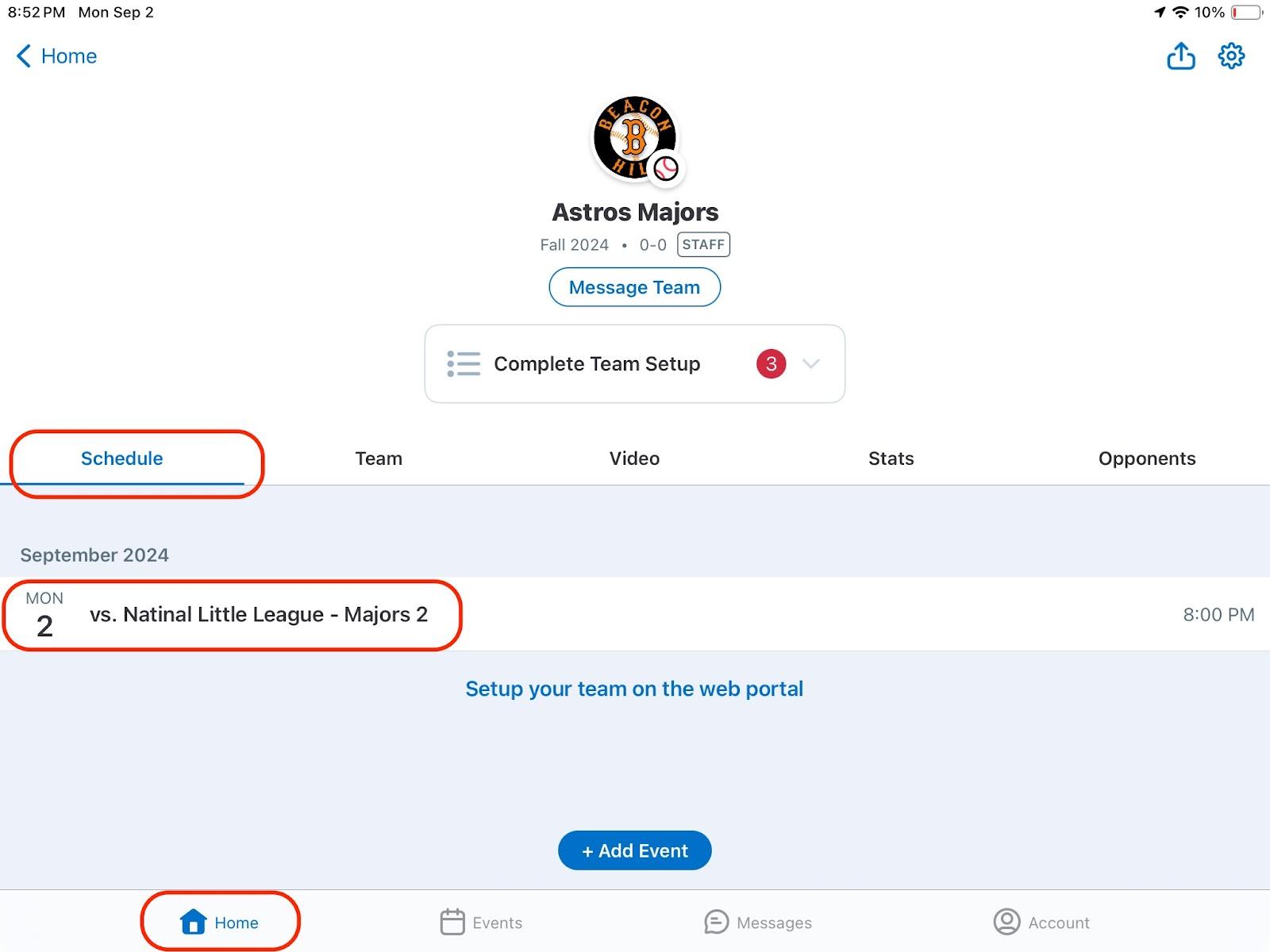
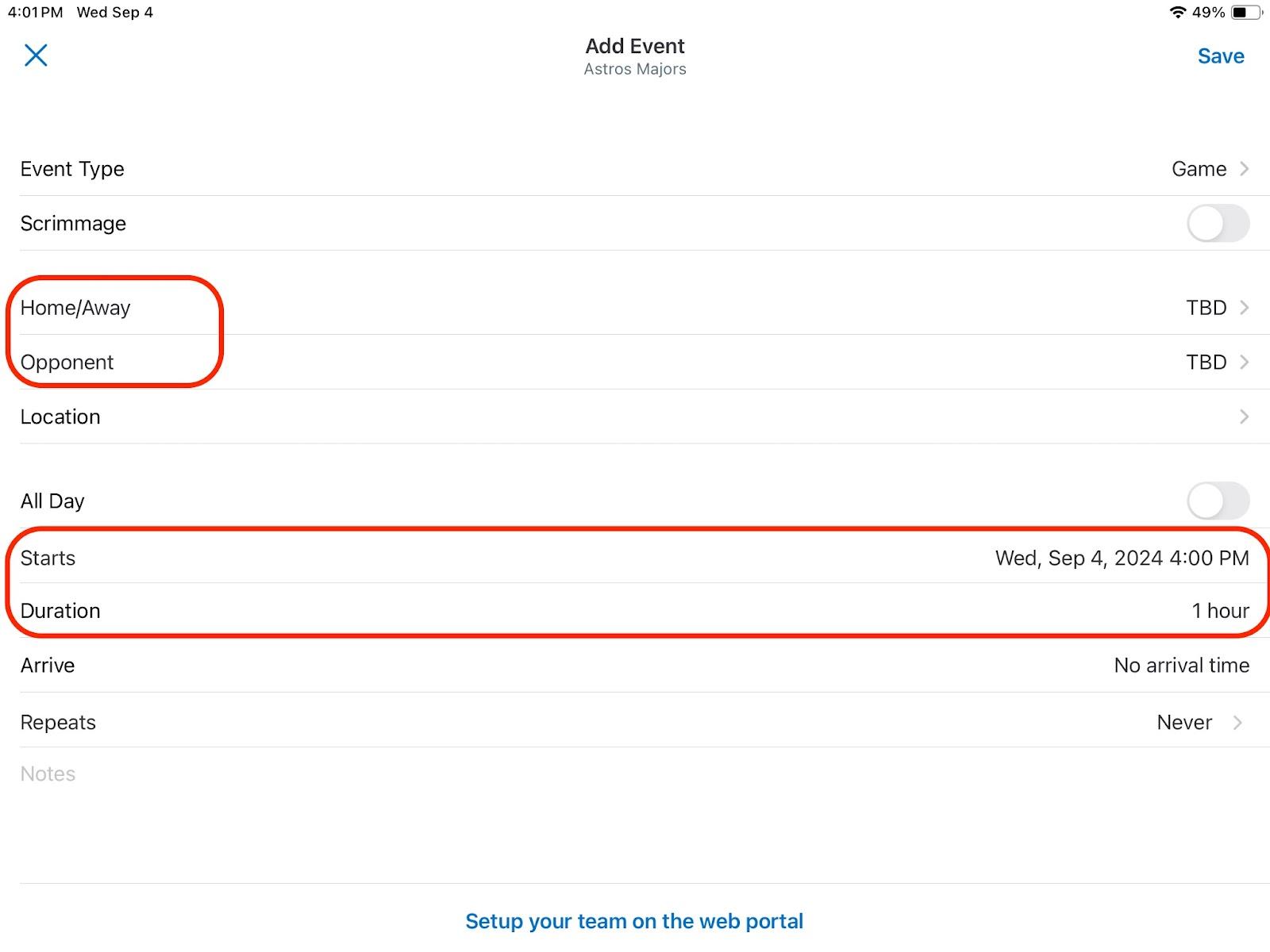
If the game is not listed click Add Event
Select if your BH team is Home/Away
Select Opponent
Search for the team name.
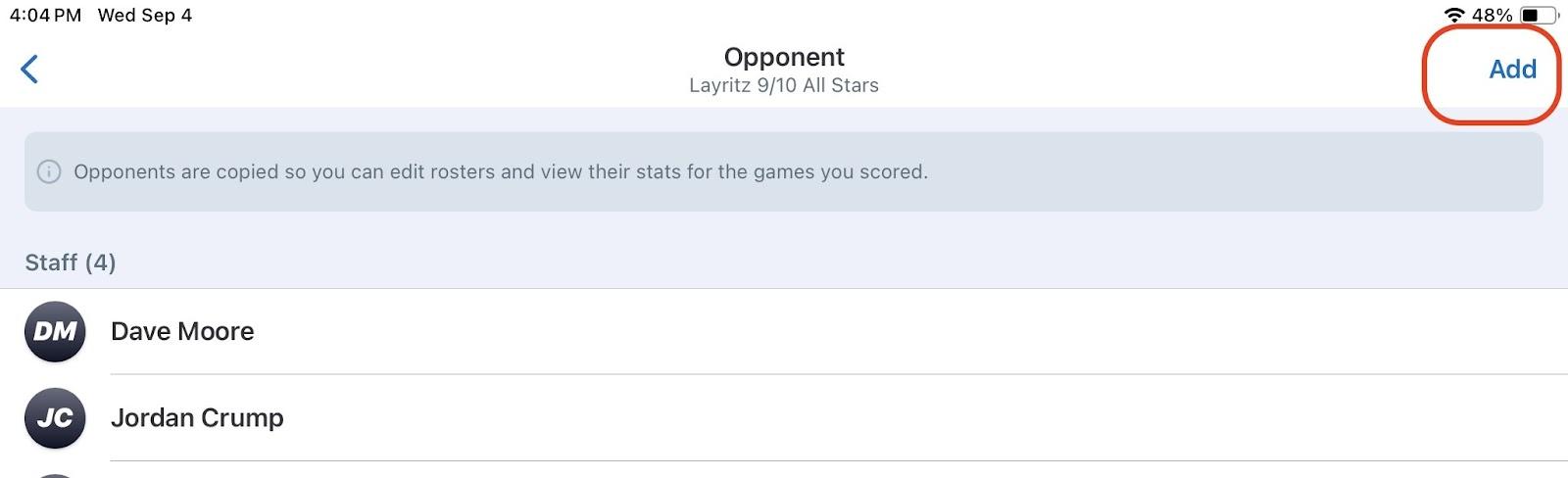
If they are on GC click the appropriate team. You may want to confirm with them that this is the correct team. The advantage of importing the opposing team is that all their players will be pre-populated.
Select and then click Add
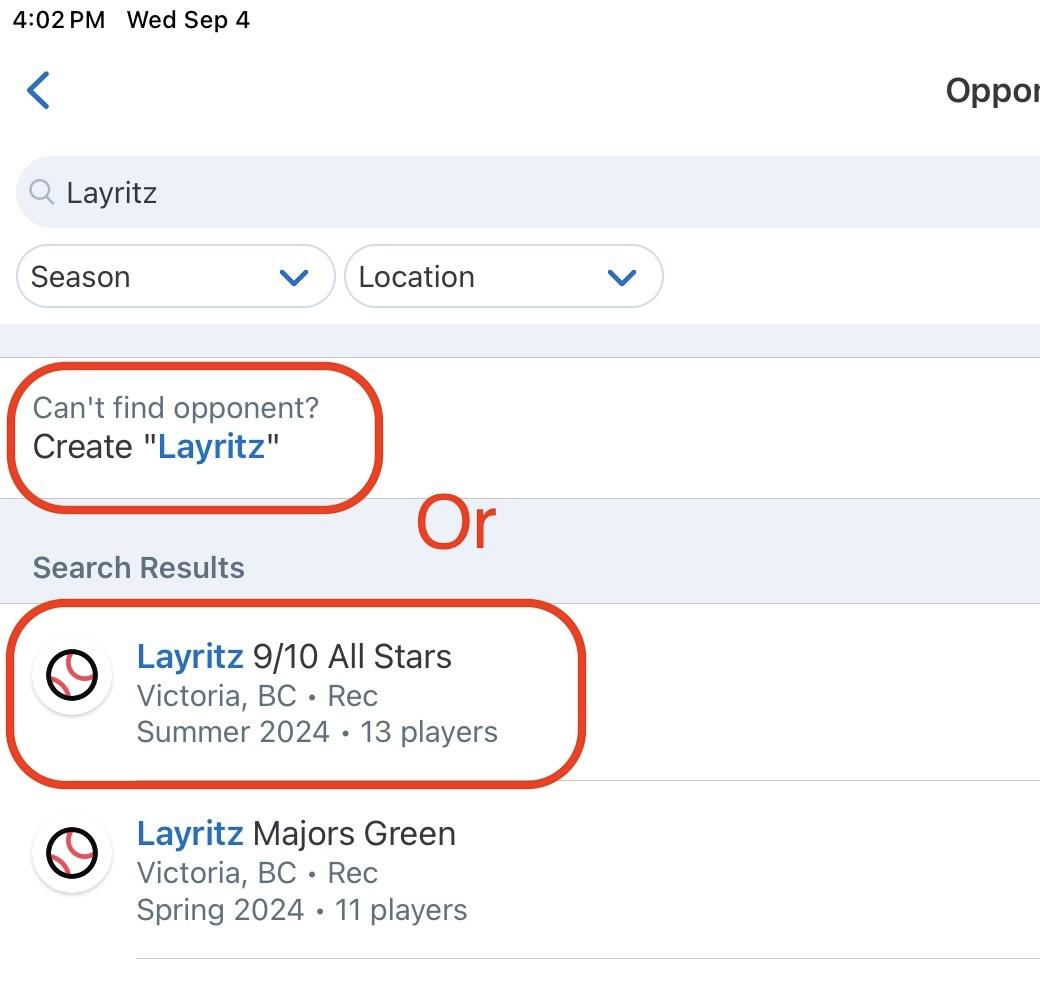
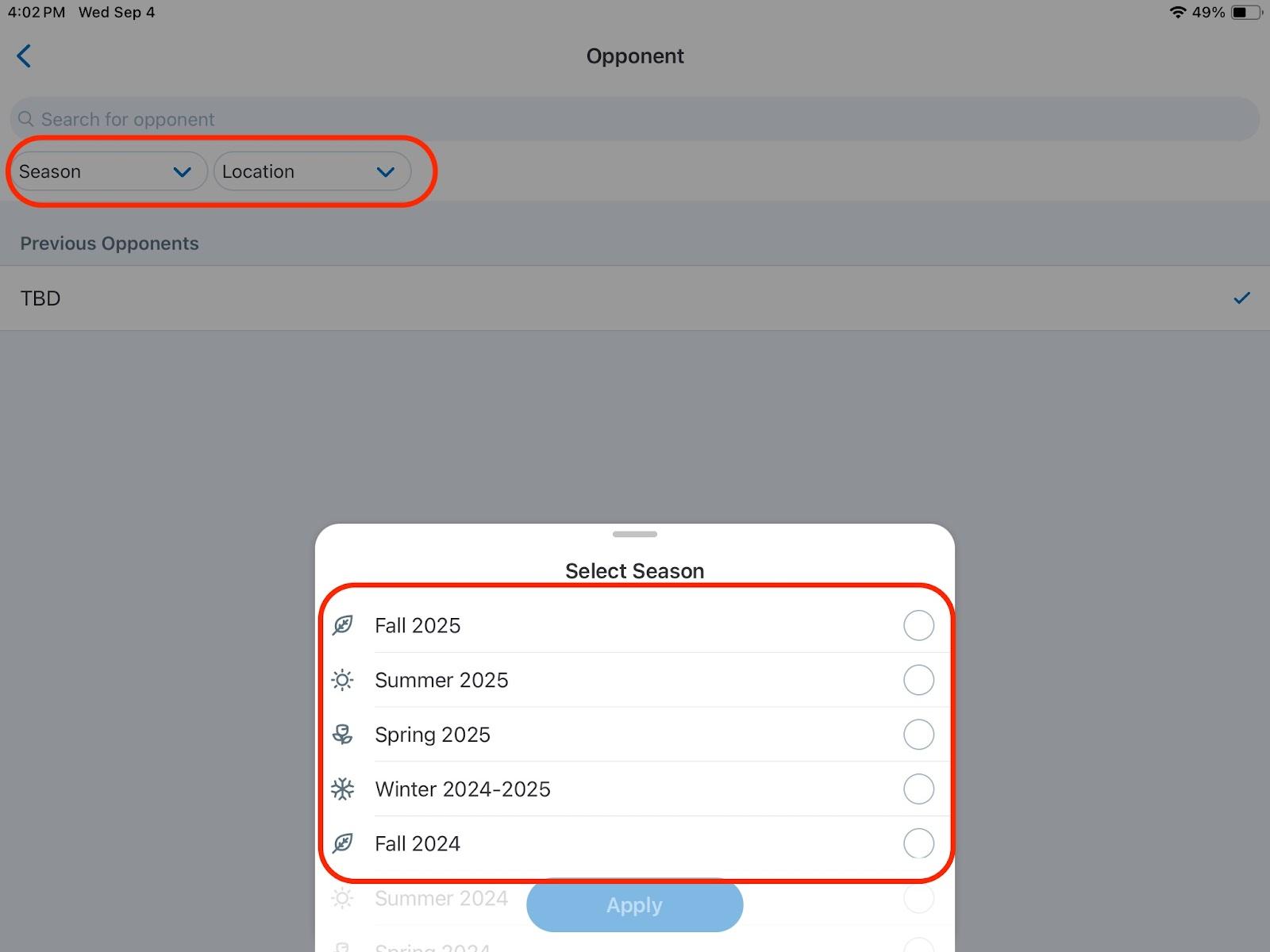
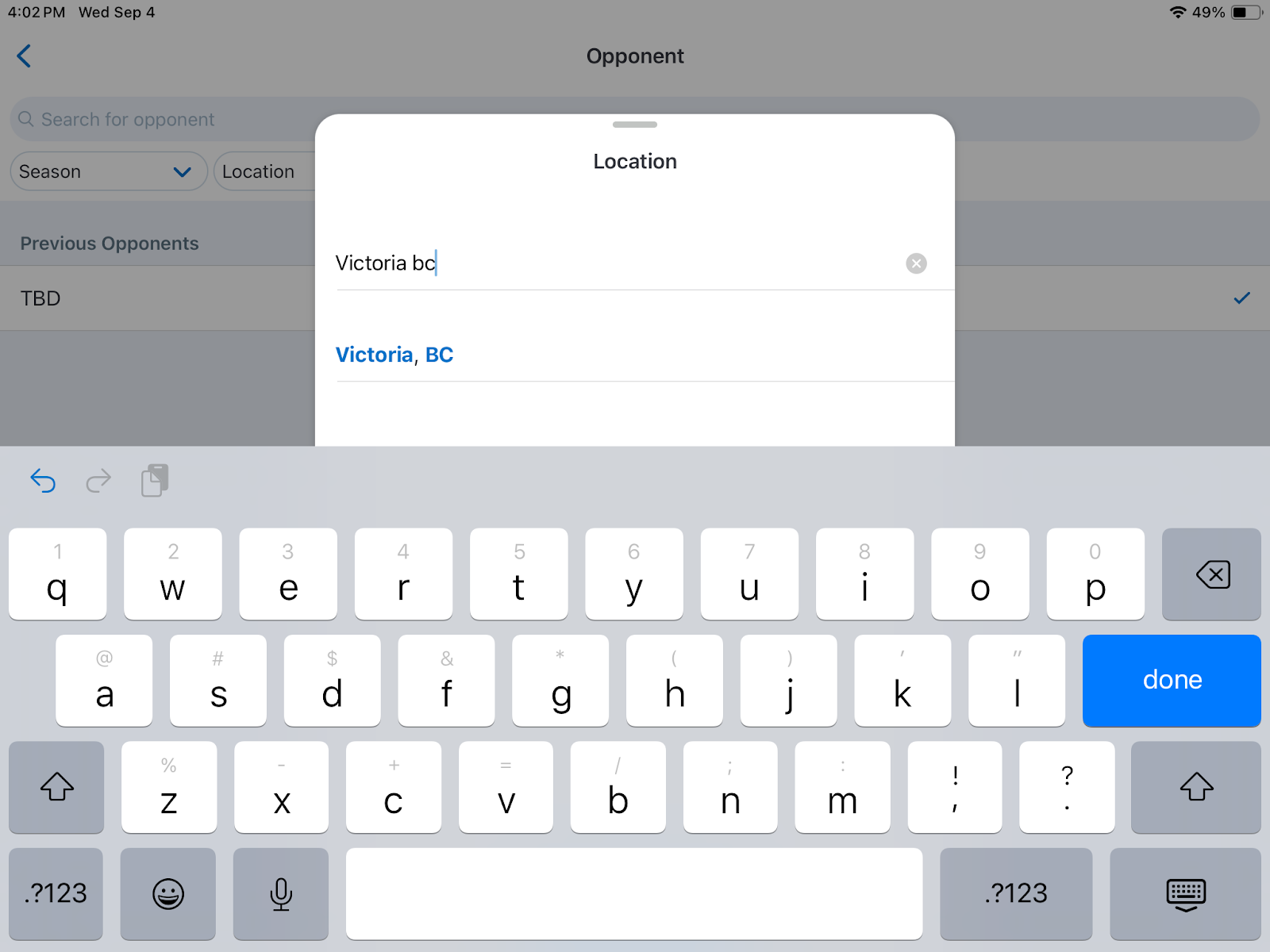
Optionally, to facilitate searching if the opposing team is on GC select the Season, and select the Location as Victoria, BC. and search for their team (you can also confirm with a member of the team if they are on GC as their name may not be obvious)
If they are not on GC select “Create ………..”
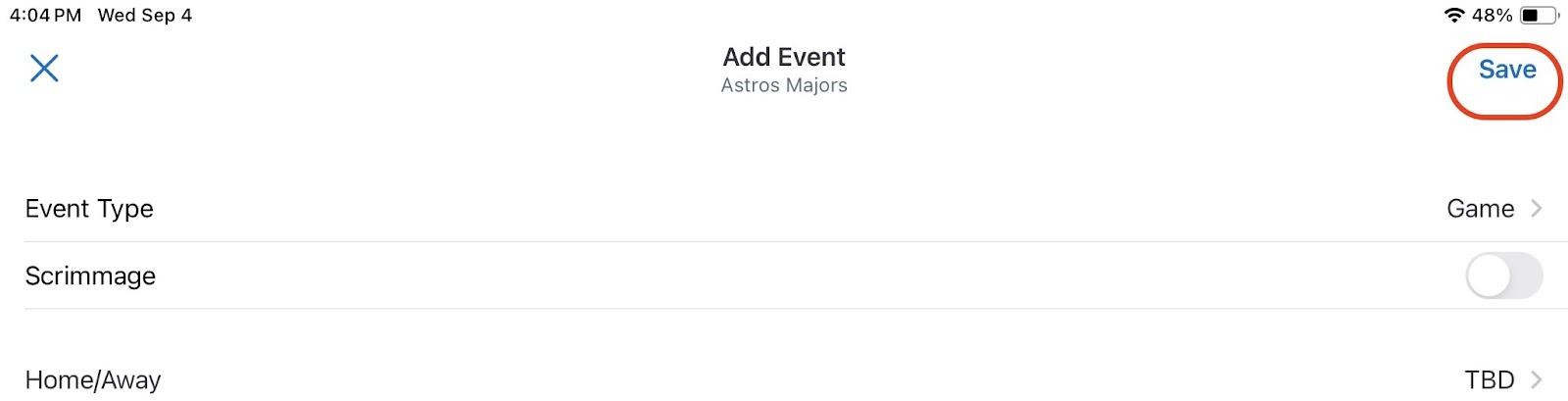
Then click Save in the top right corner
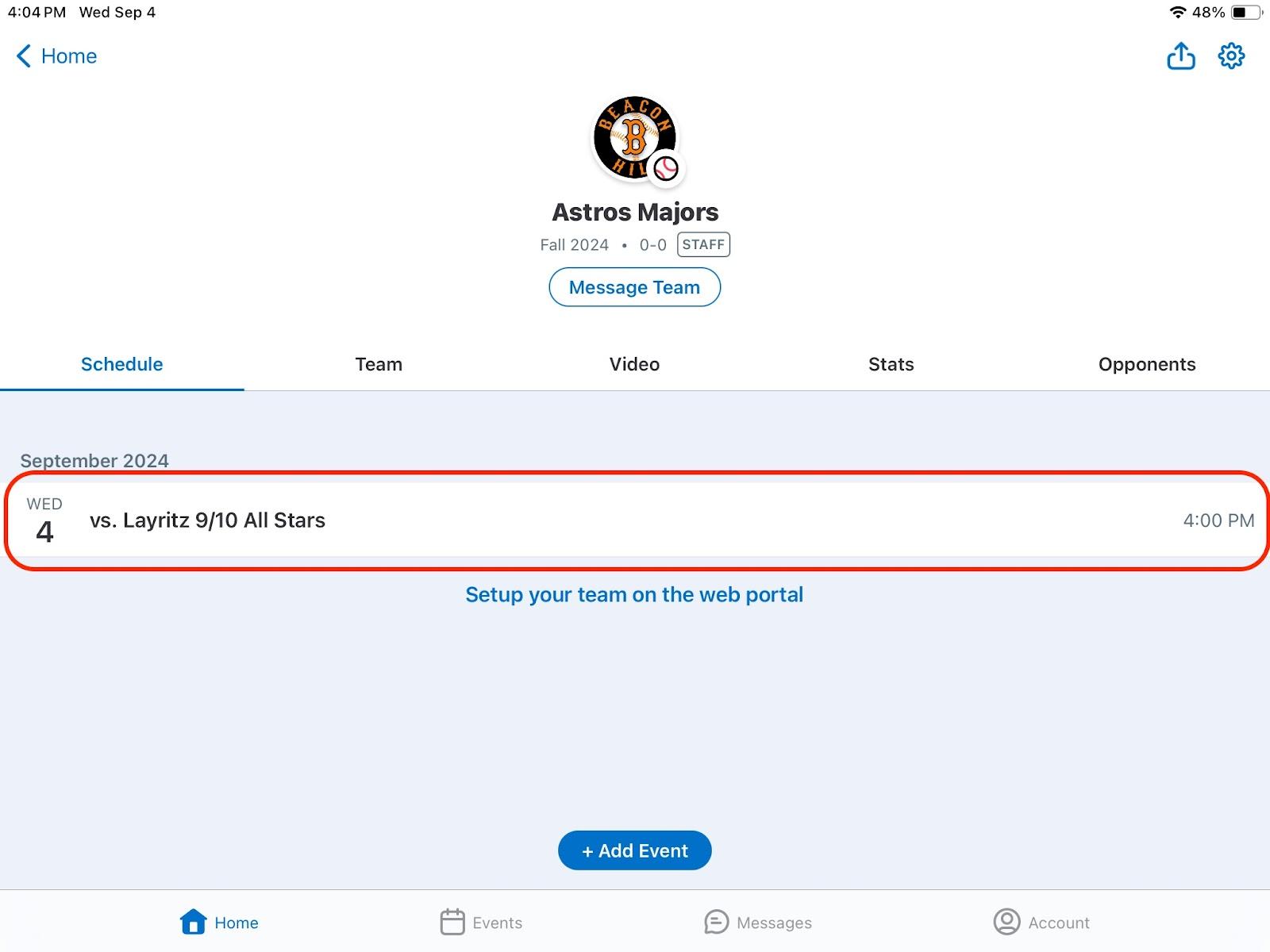
Select the Game, and select Score Game
Follow the same steps below to add your roster. You can also Share Your Team Lineup with the opposing team and you can “Scan Opponent Lineup” (if they are using GC).
From here the game Setup and Scorekeeping instructions are the same for BH vs BH or Interlock games
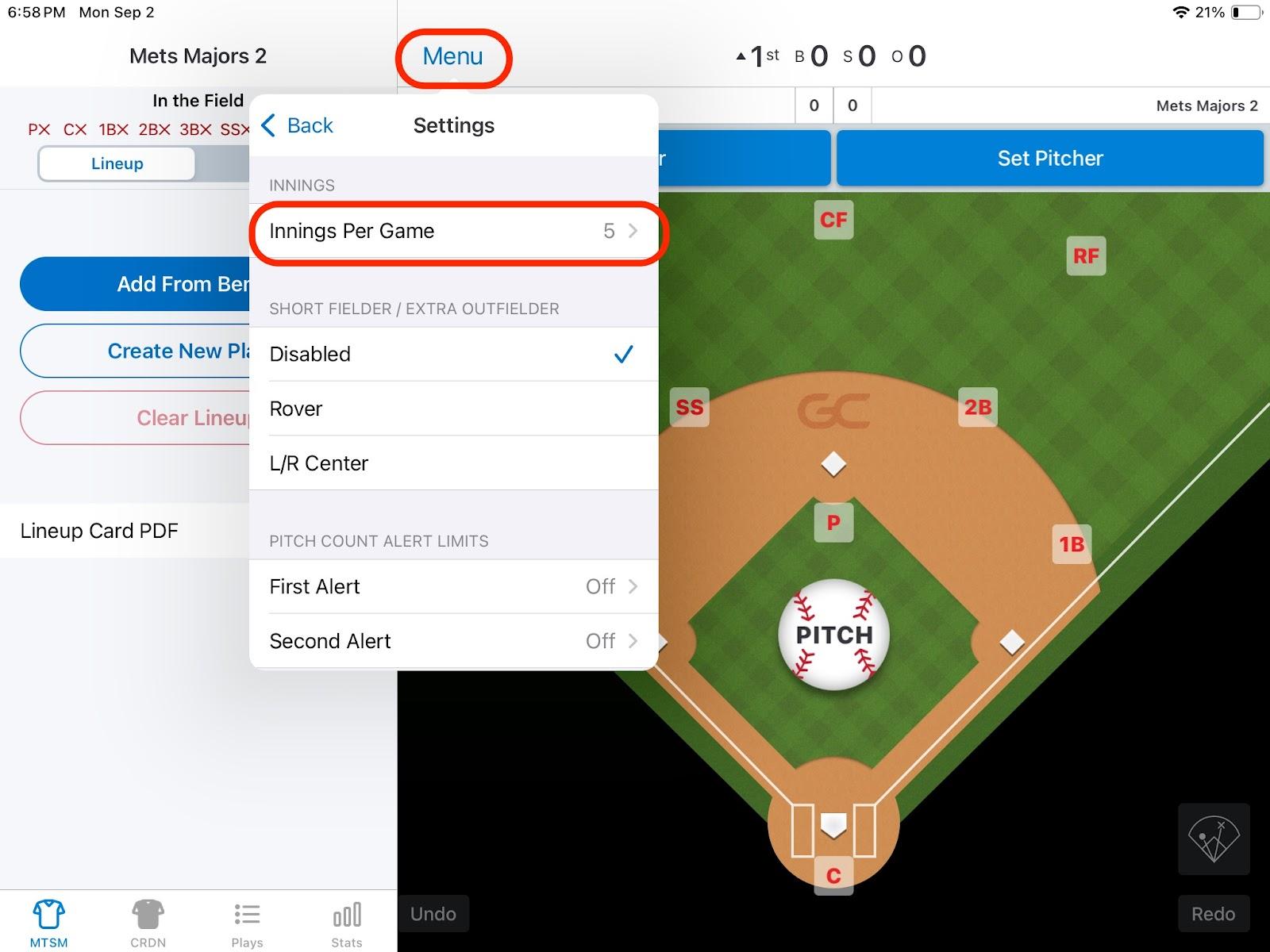
Once the game is open click on Menu in the top bar
Click on Settings
Click on Innings per Game and choose 5 for Minors and 6 for Majors
To set the batting order:
Once you have received the lineups from both coaches, click on each team in the lower left corner.
Click on Lineup
Click on Add From Bench
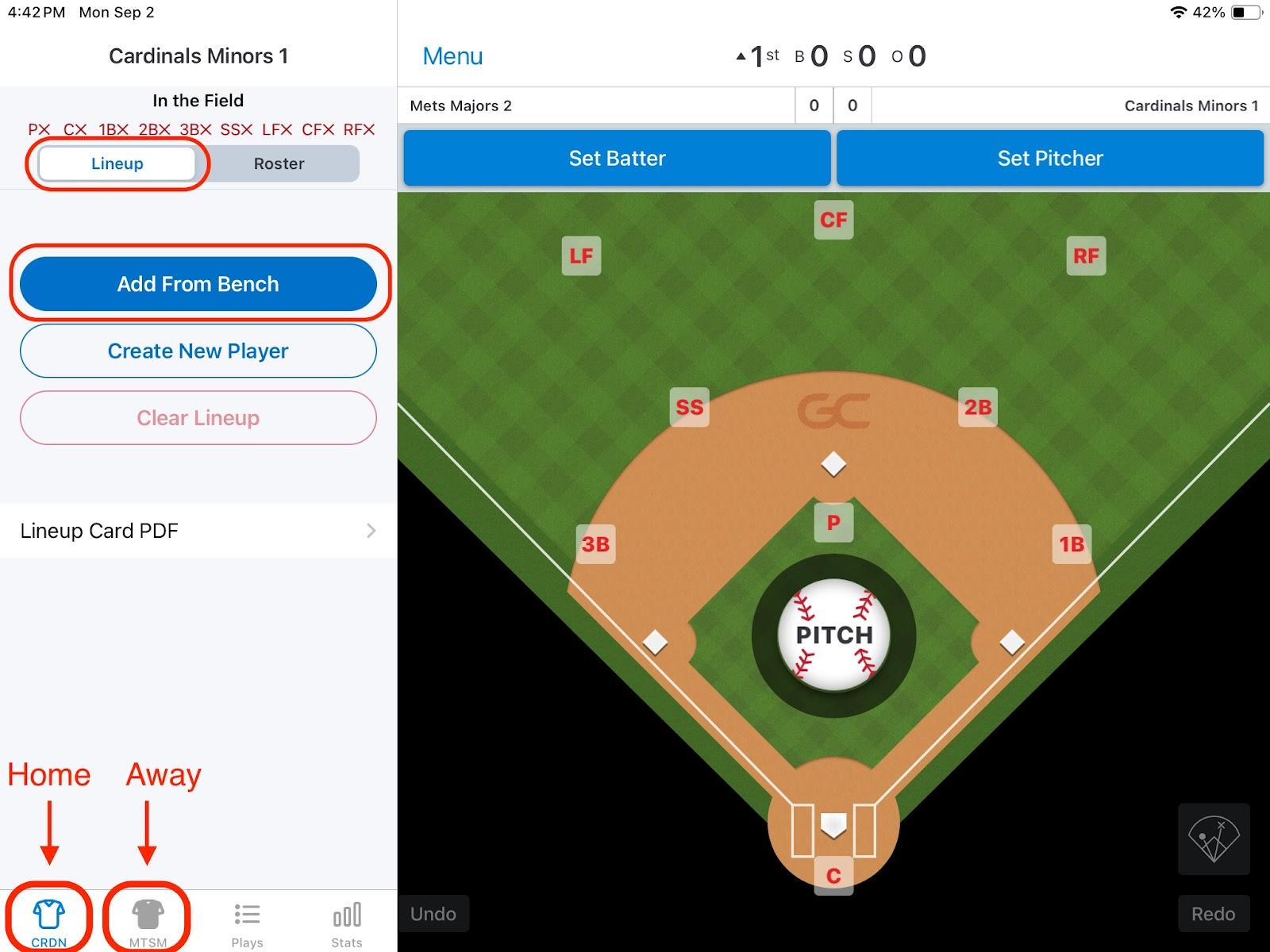
Select all the players who are playing in this game. Note: the order in which you click on each name will set the batting order. You can drag and drop each player if you need to change the batting order.
Click Done
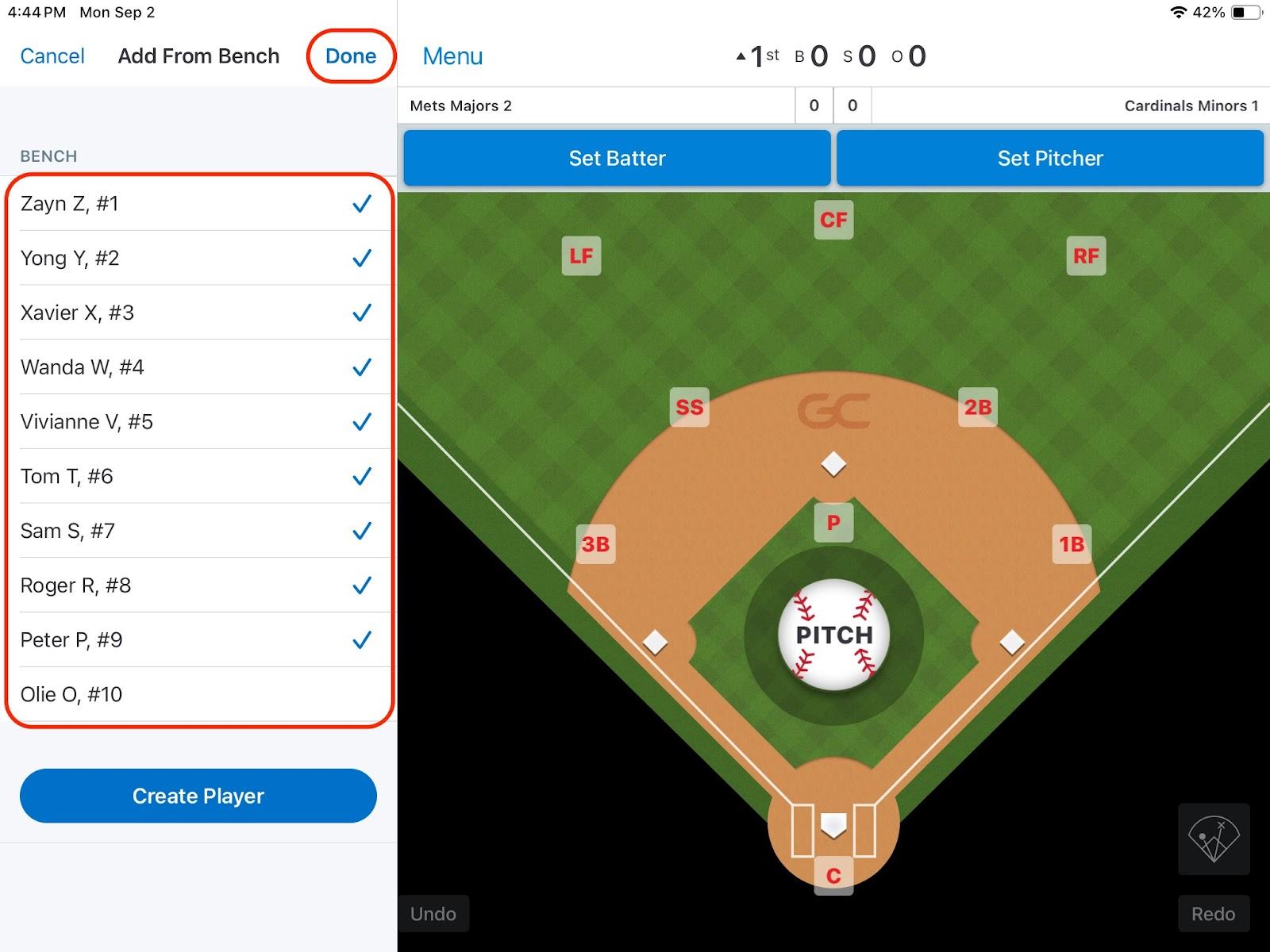
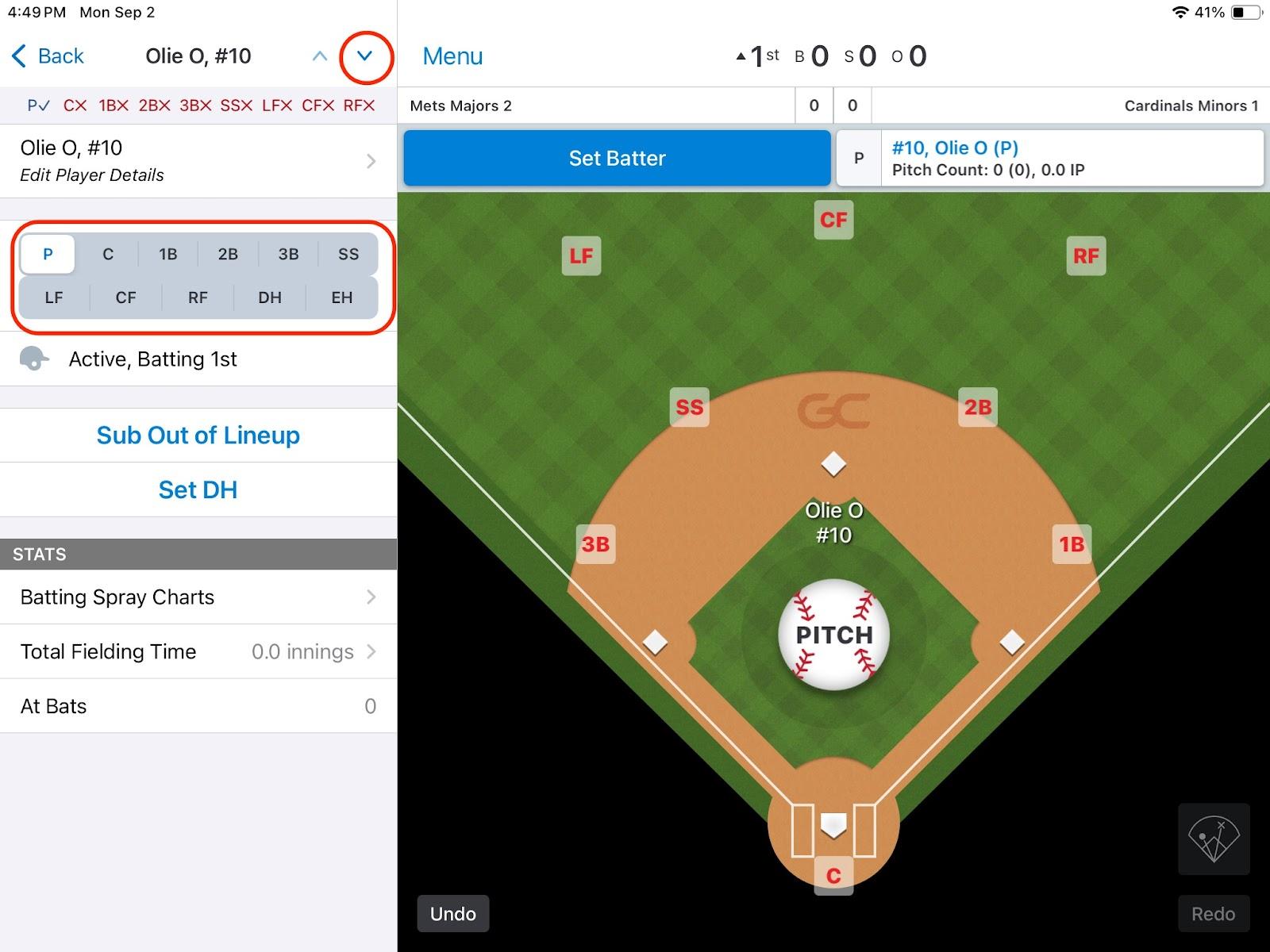
To set the starting field positions, there are 3 choices:
- In the Lineup, click on the first player, then select the position.
Then click on the down arrow in the top bar, and continue through the entire roster
- Click on Roster, then click on the first player then select the position and repeat as above
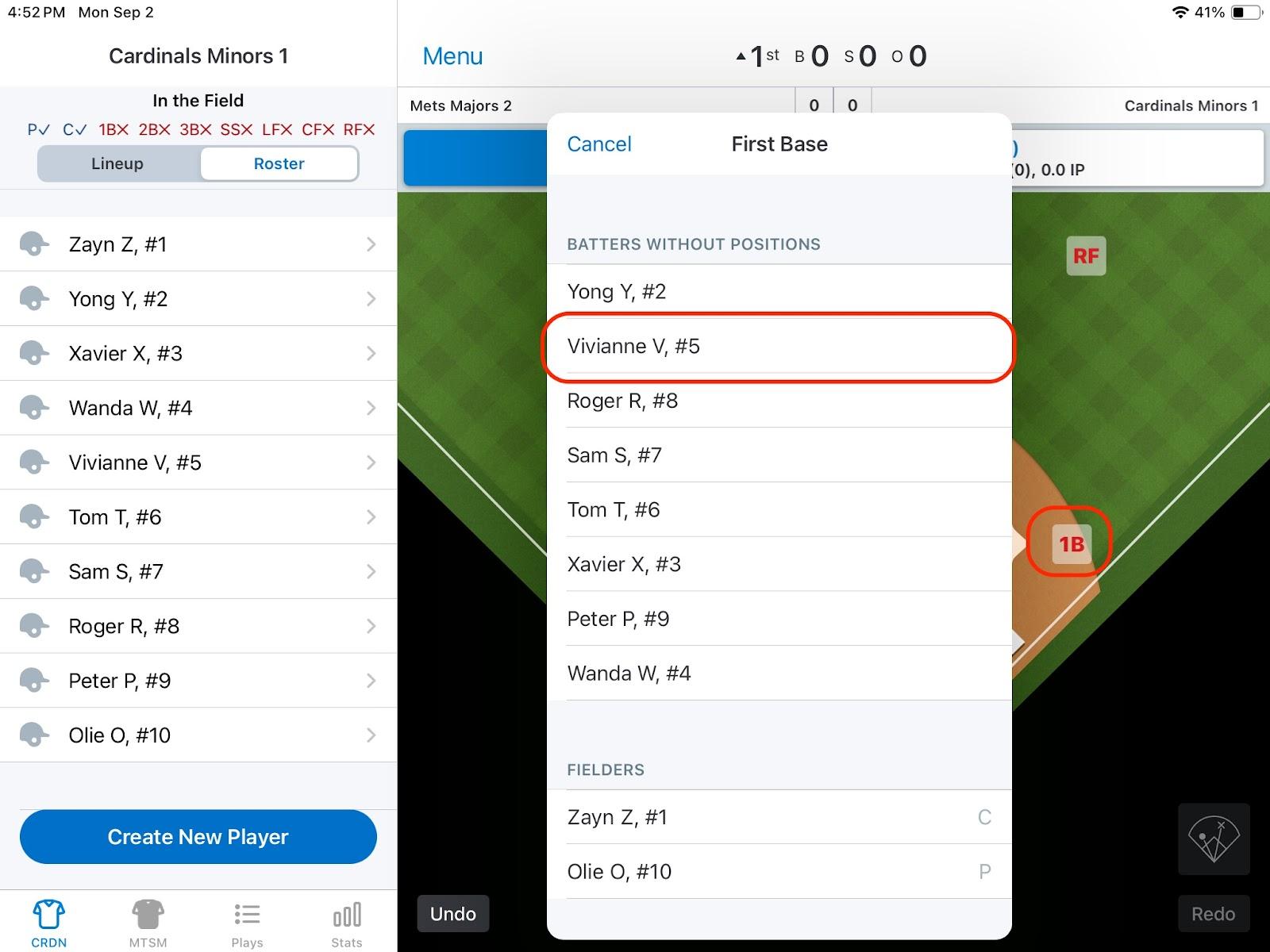
- Click on each position in the field layout and select the correct name from the roster
Click on the other team in the lower left corner
Repeat the above steps 1 or 2.
You will need to wait until this team is in the field in order to use method #3
For Interlock games: you do not need to worry about their teams field positions.
Setup the Streaming iPad and Camera
Unlock Streaming iPad (mounted to the wall) with code _______.
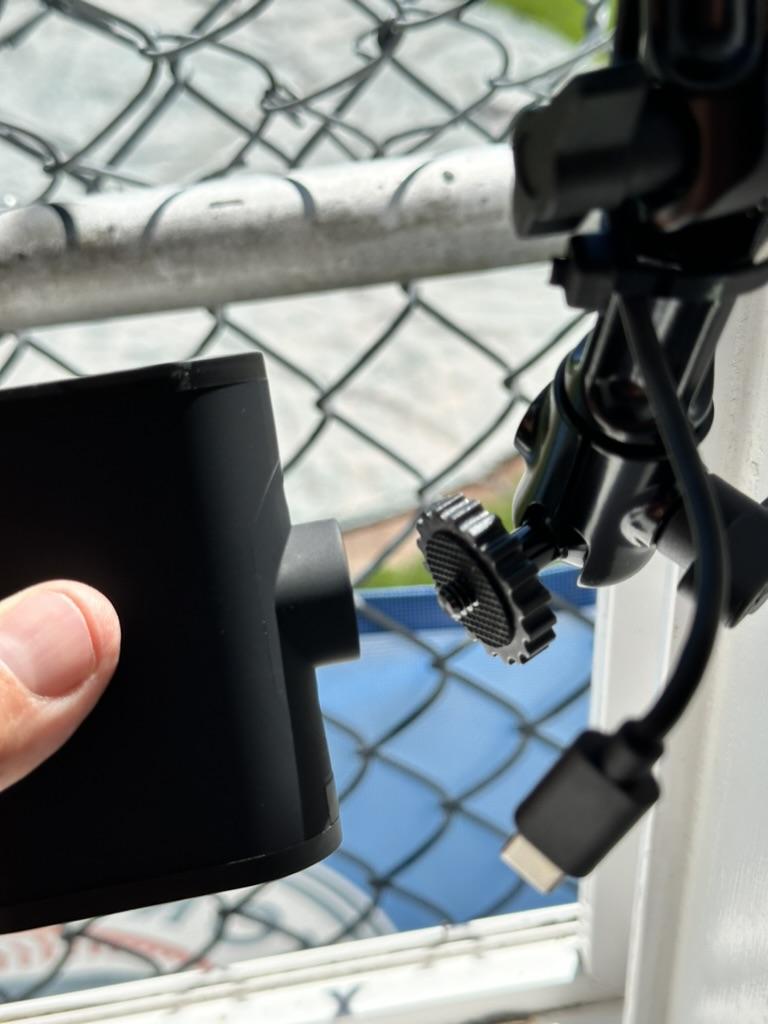
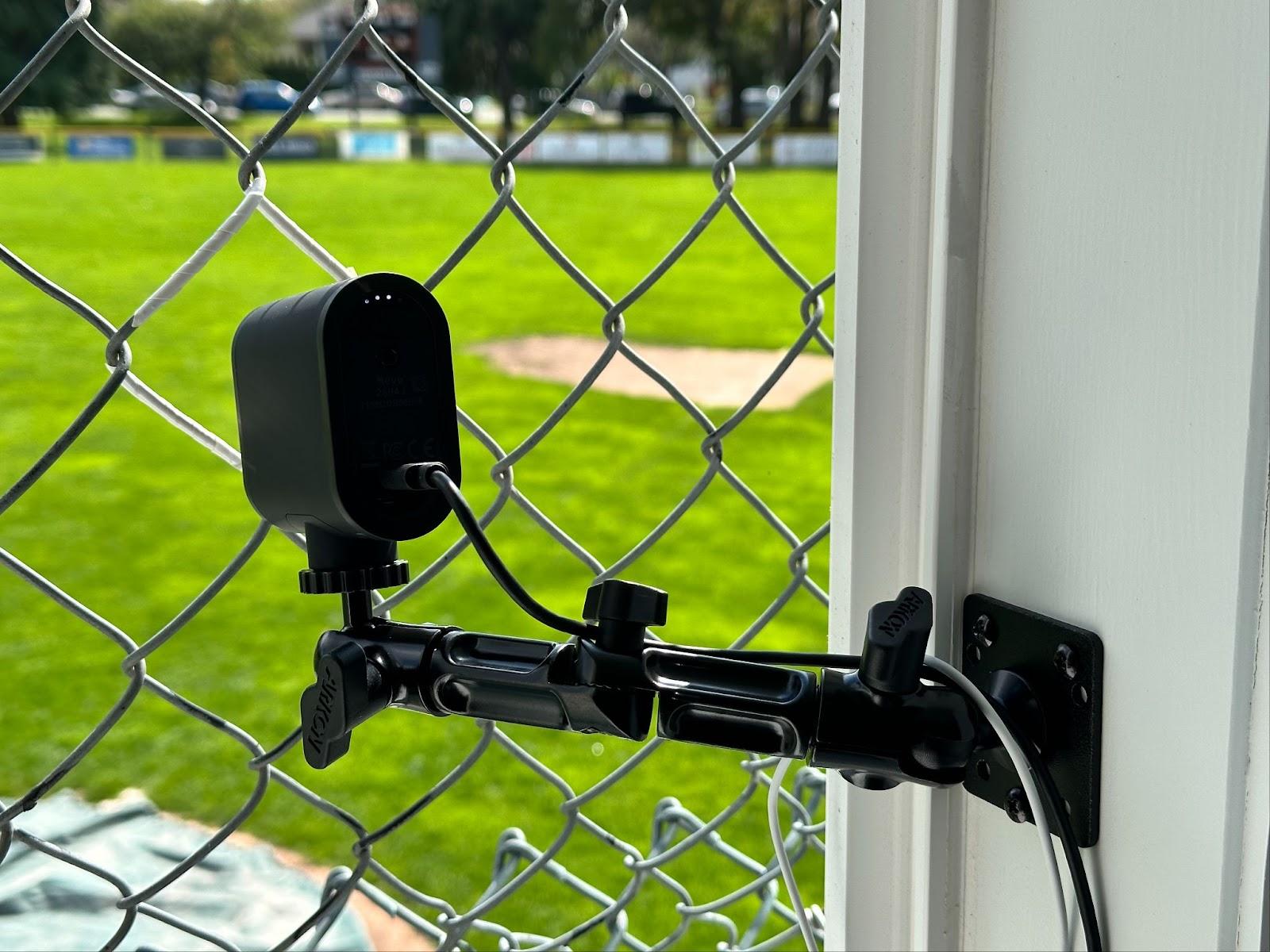
Mount the camera and camera arm, and point the camera through the white fence hole.
Spin the camera on the thread on the arm BEFORE placing the arm outside the window so you don’t accidentally drop the camera!!! Plug in the USB and microphone cables. The microphone is at field level and does not capture audio in the clubhouse. TIghten it as needed
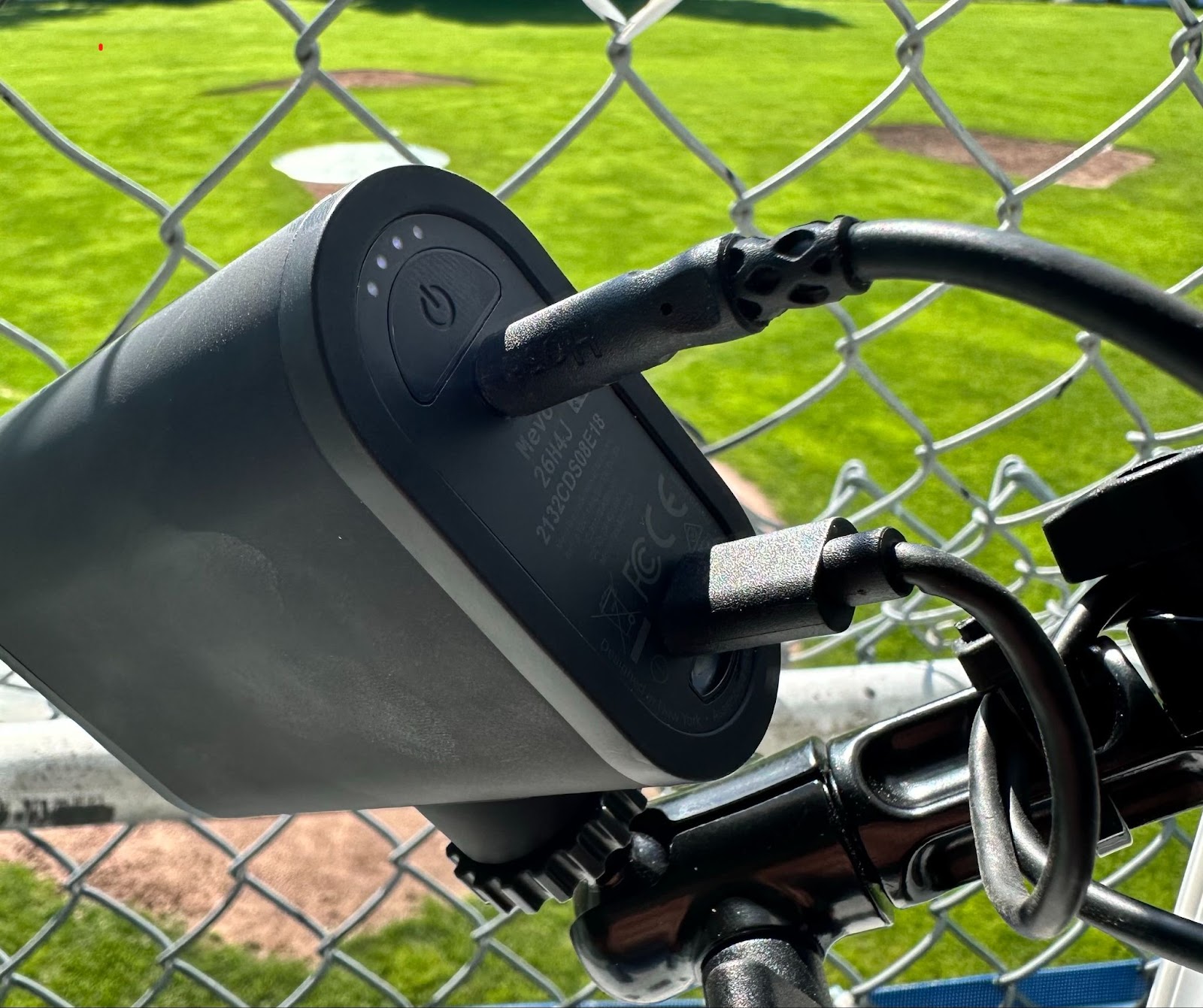
Press the Power button on the back of the camera - above the microphone input. The rear camera lights will be on and it will beep. Even though the lights are on when you plug in the USB that is just the battery indicator.
Open the GC app on the Streaming iPad
(if you need to log back into the GC app:
username: uic@beaconhillball.com / password: ___________________________________)
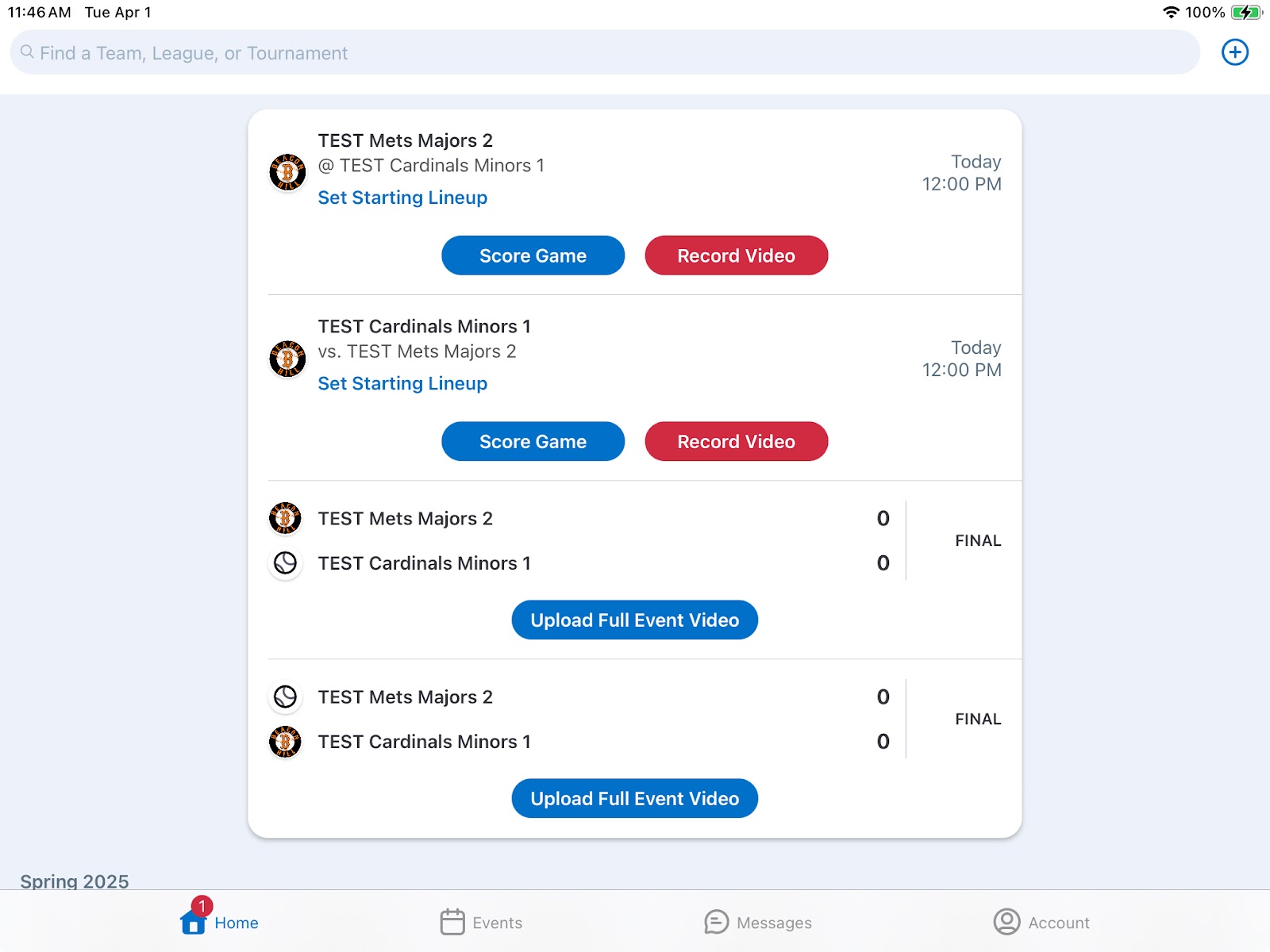
If the game you want to stream is shown at the top of the list in the Home screen click on RECORD VIDEO
DO NOT CLICK ON SCORE GAME FROM THIS IPAD.
NOTE: you may want to RECORD VIDEO closer to game time.
Or:
- For a Head-to-Head game: Click on the League Majors or Minors depending in which division you want to access
- For an Interlock game, click on the team icon
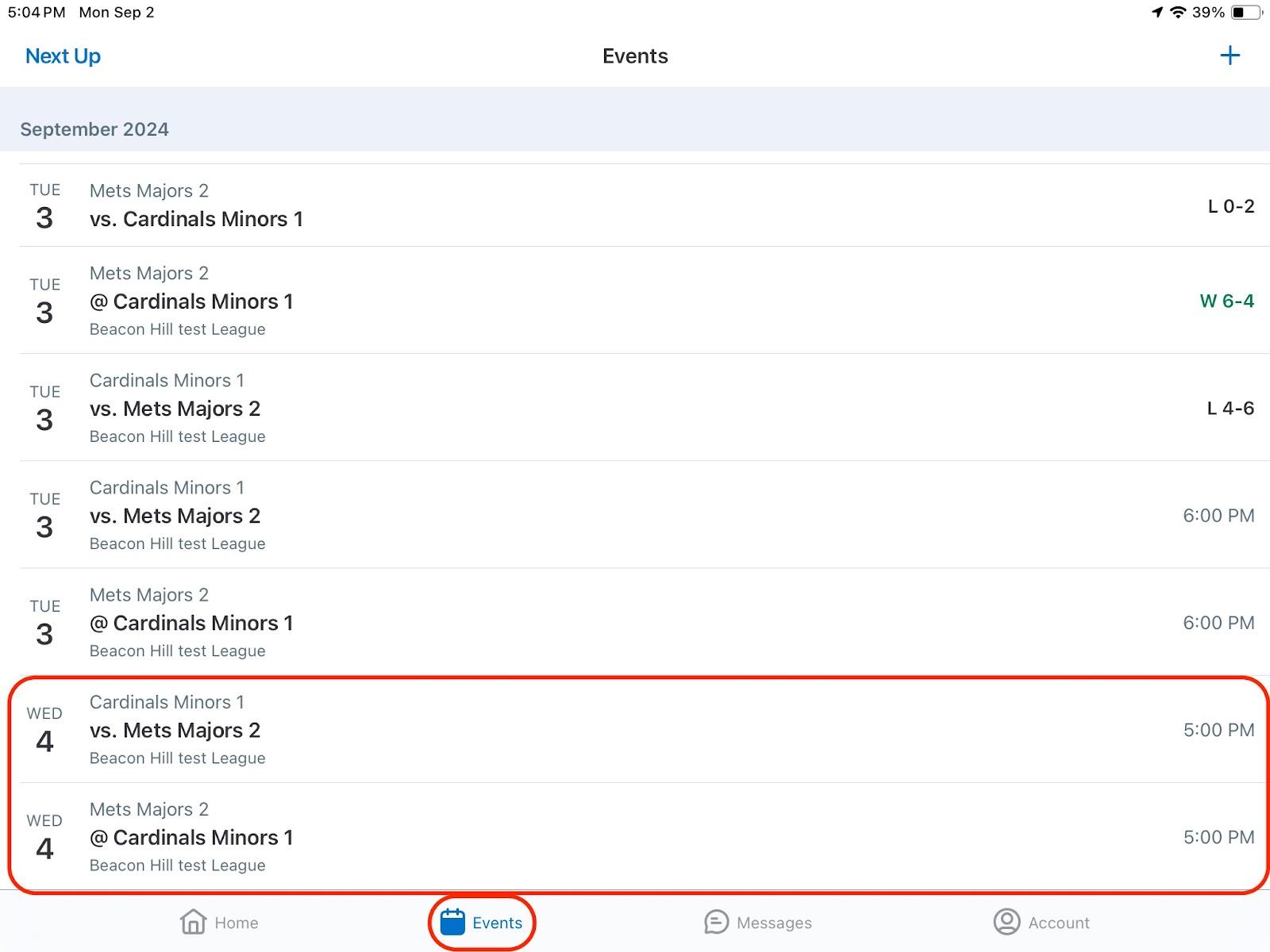
Click on Events (note this is different then when you start scorekeeping)
Click on game you want to stream (note you will see 2 entries for each game - it doesn’t matter which one you select)
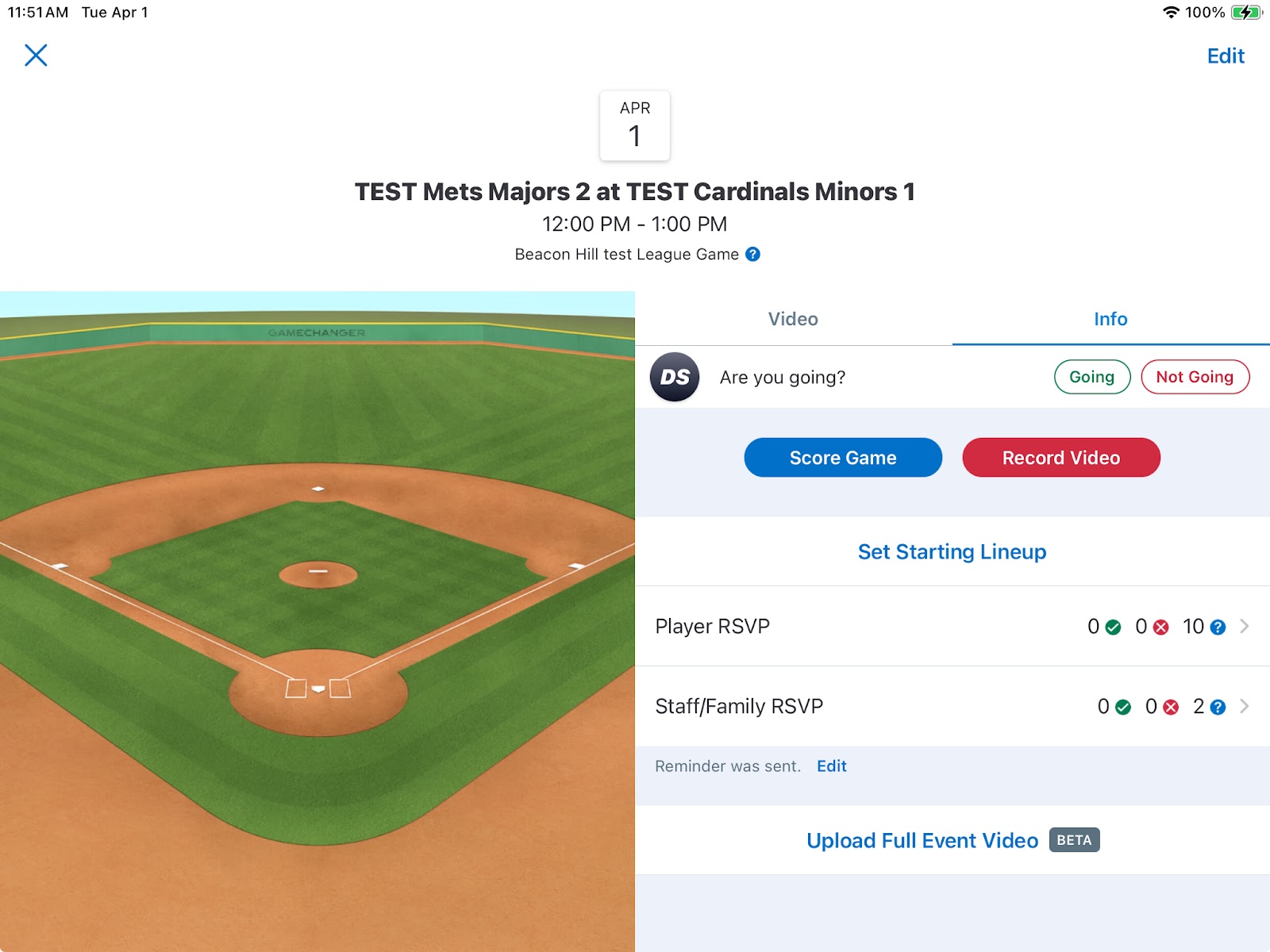
Click on RECORD VIDEO
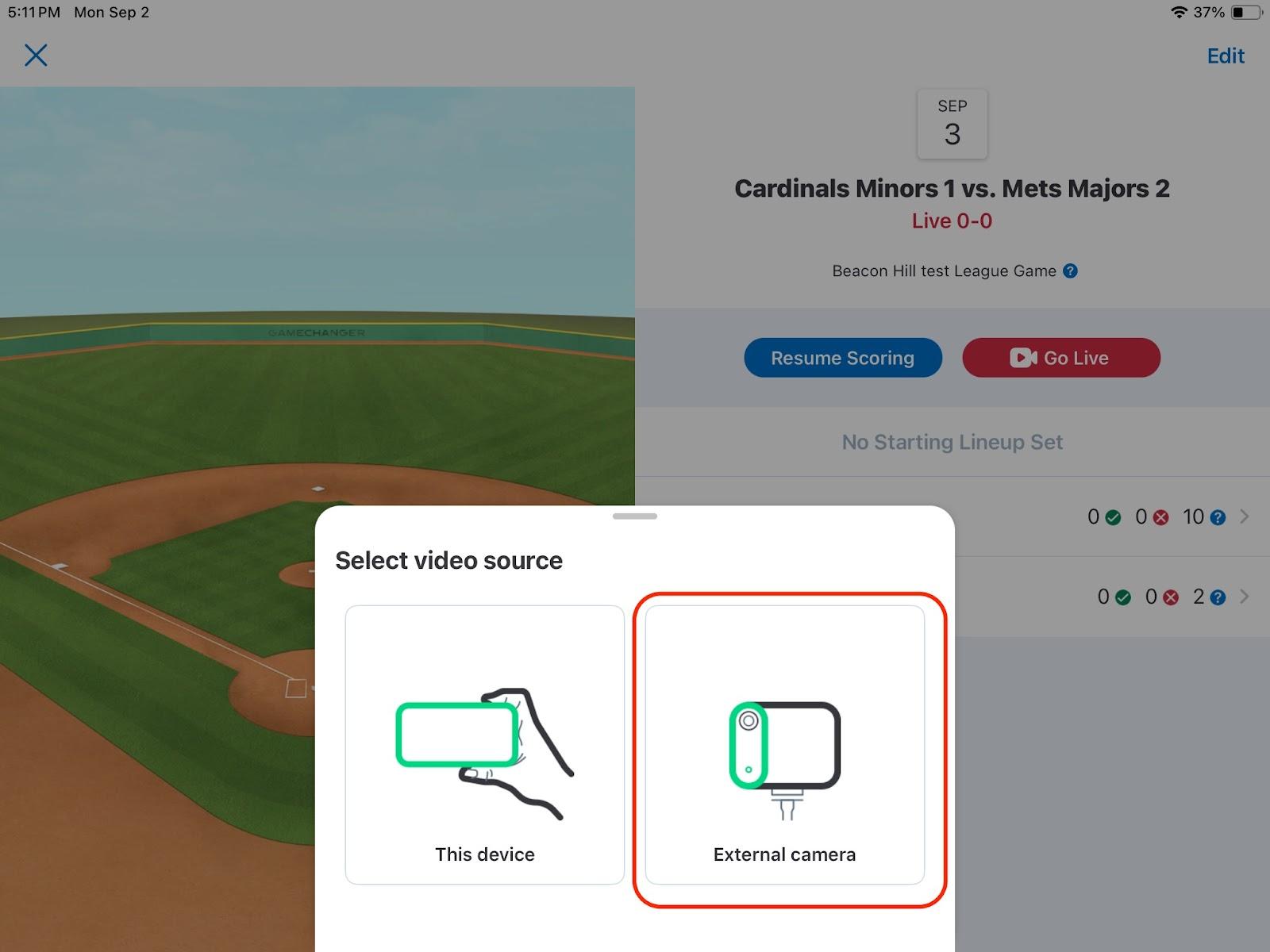
Click on External Camera
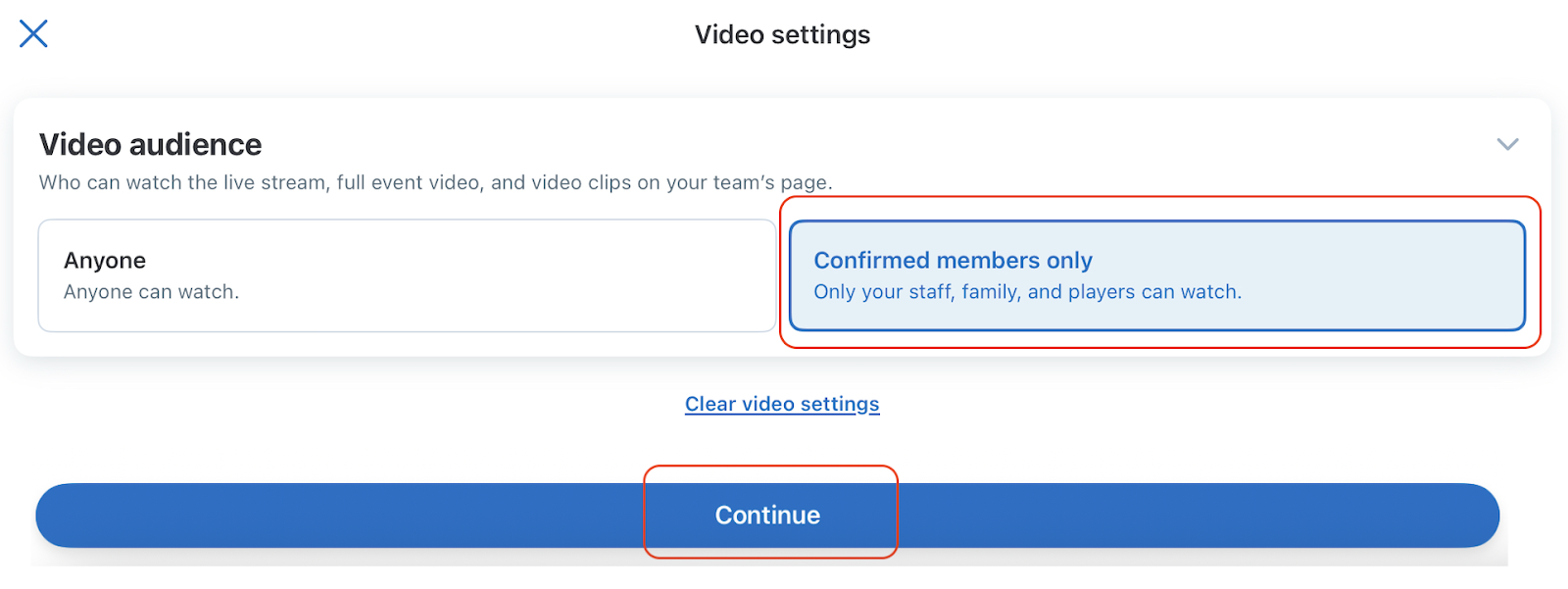
Select Video Audience: “Confirmed Members Only”
Click “Continue”
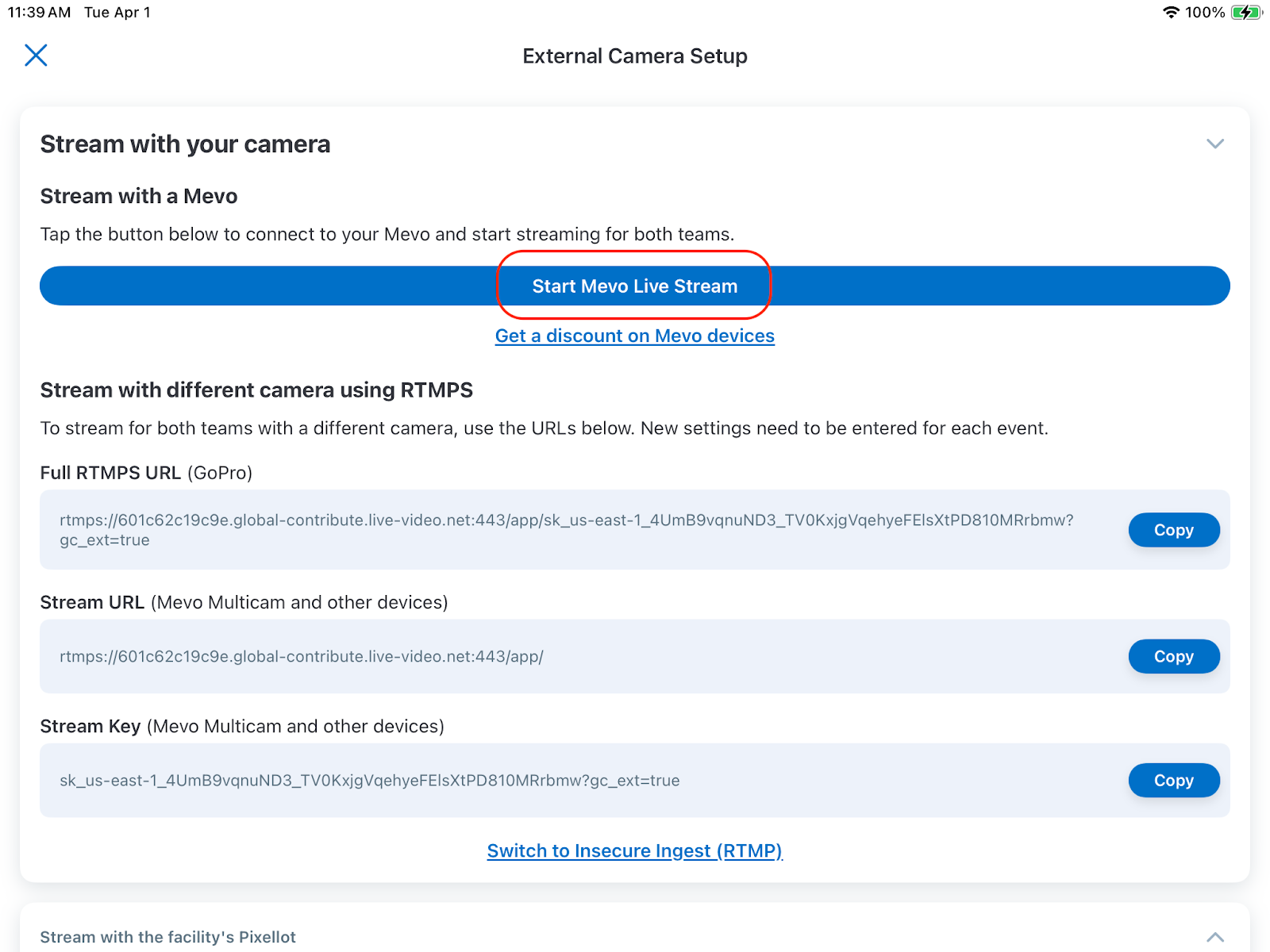
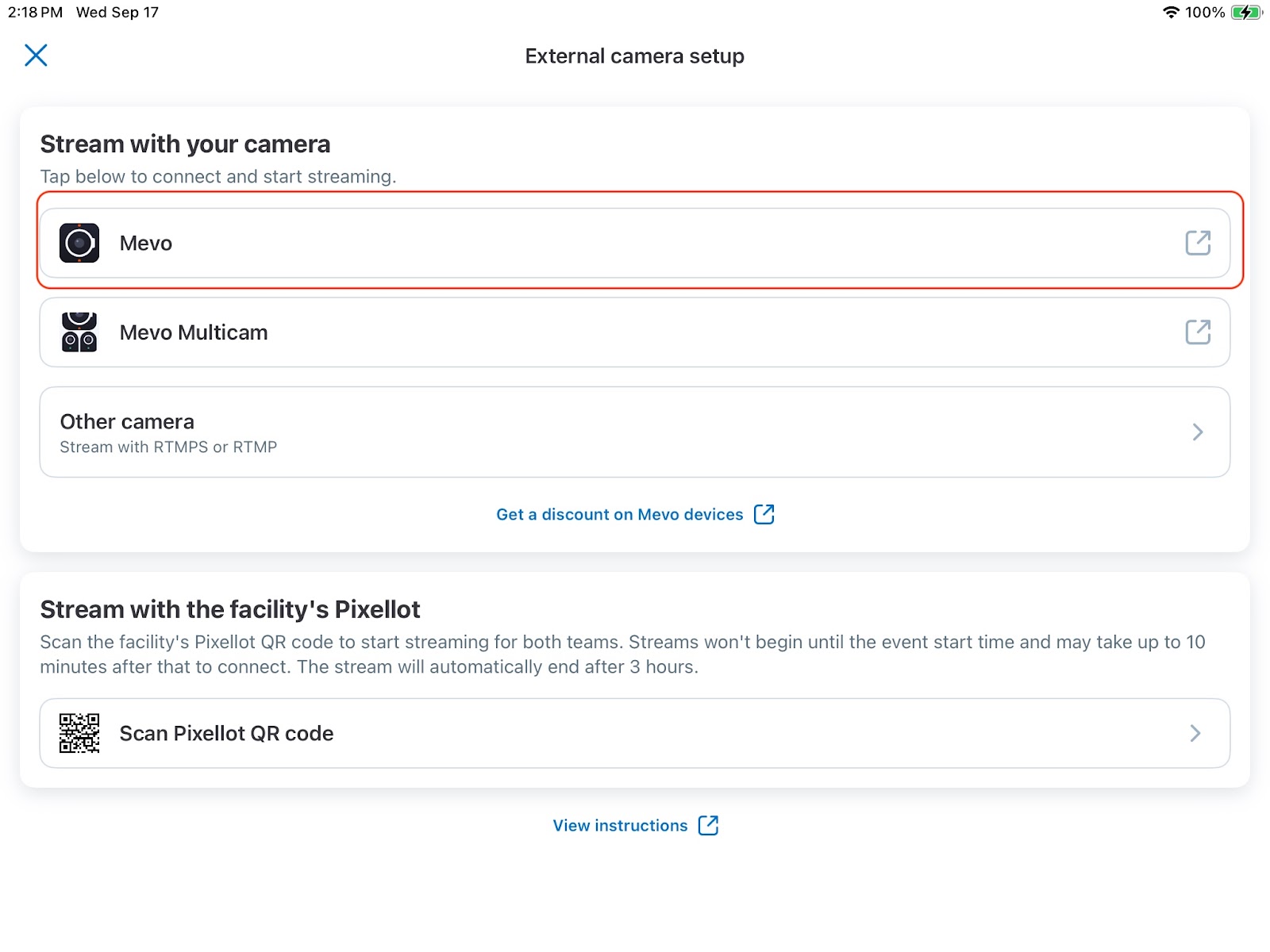
Under “Stream with your camera”, select “Mevo”
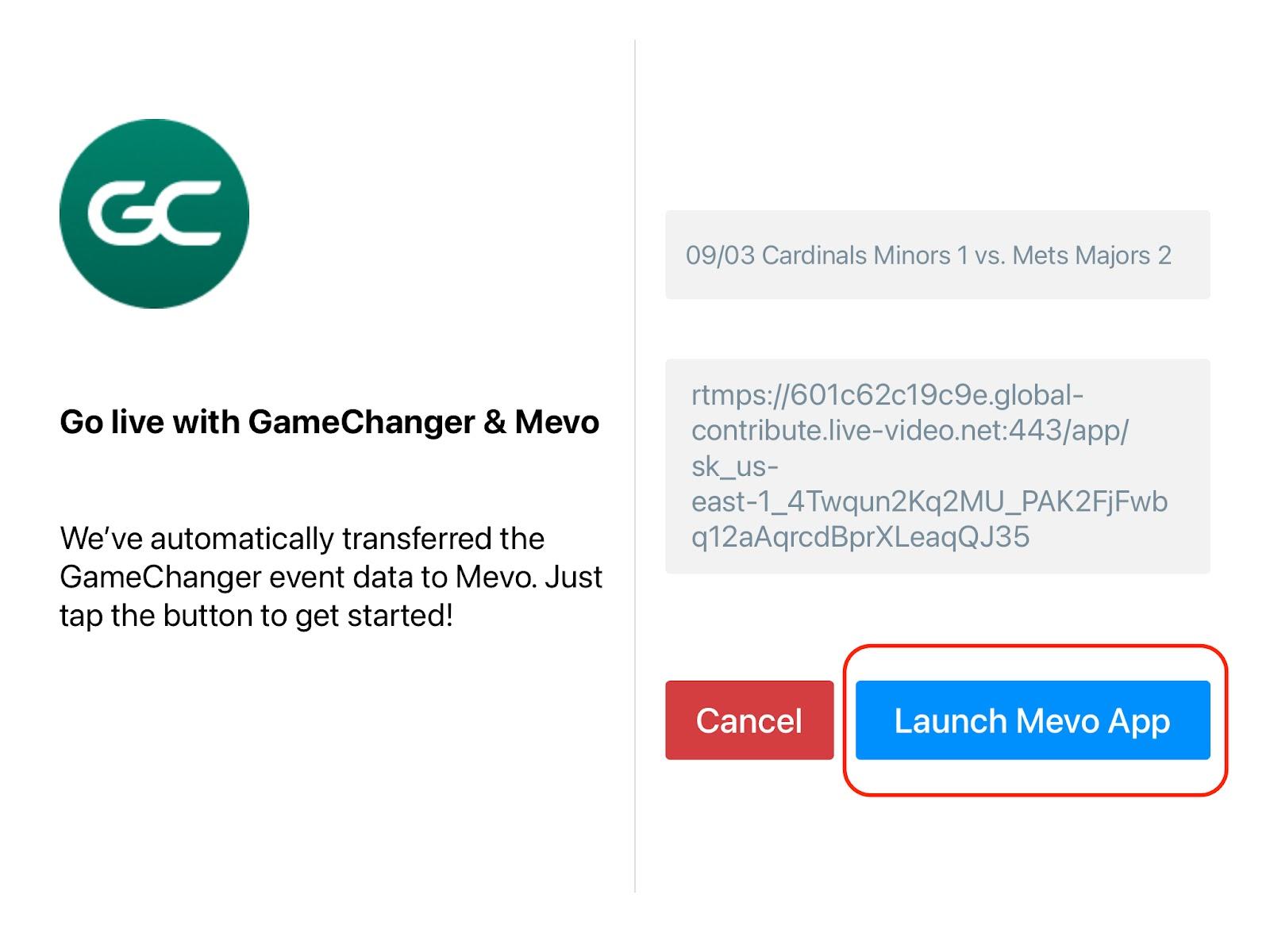
Click on “Launch Mevo App”
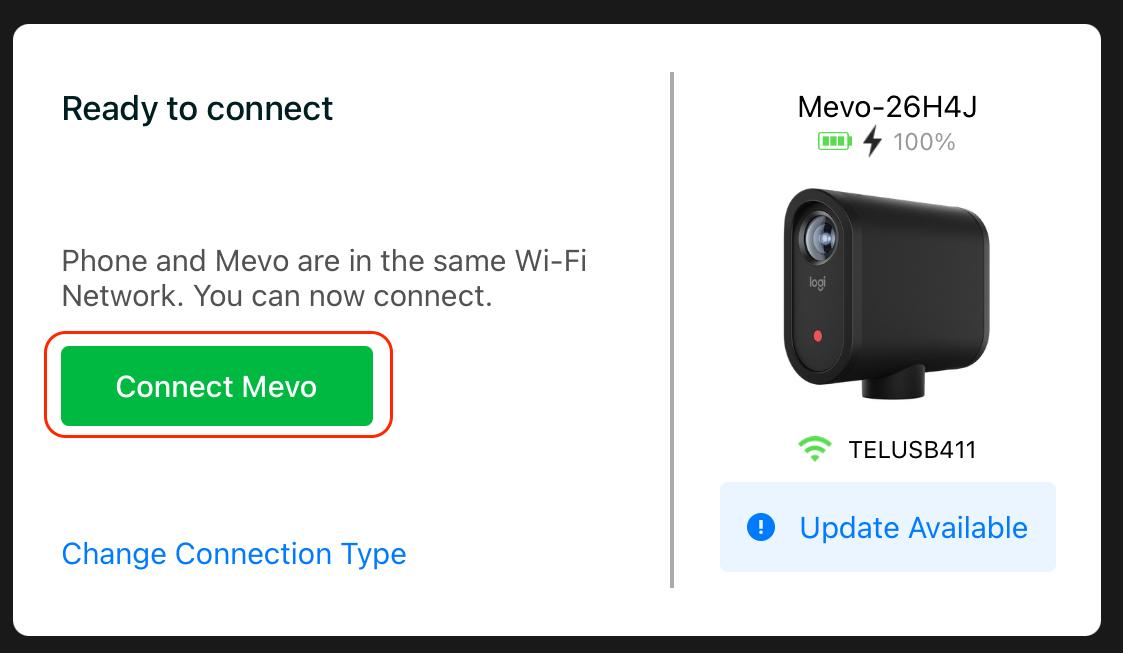
Click “Connect Mevo”
Make sure the resolution is at 1080P (top left corner)
If the GC icon is shown in the row in green - do nothing. If it is not shown, click on the RTMP icon
Do NOT change the event title. Click GO LIVE
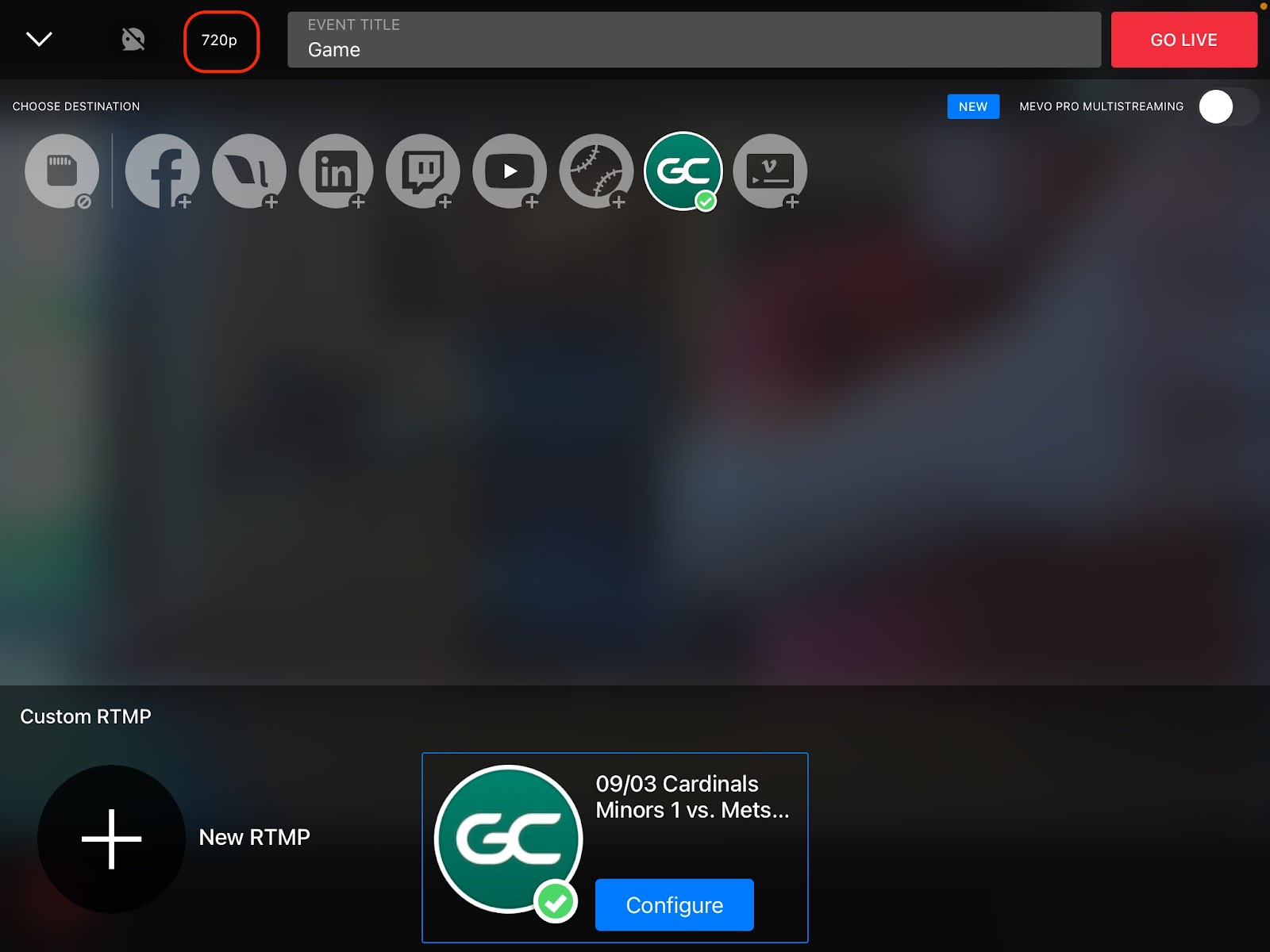
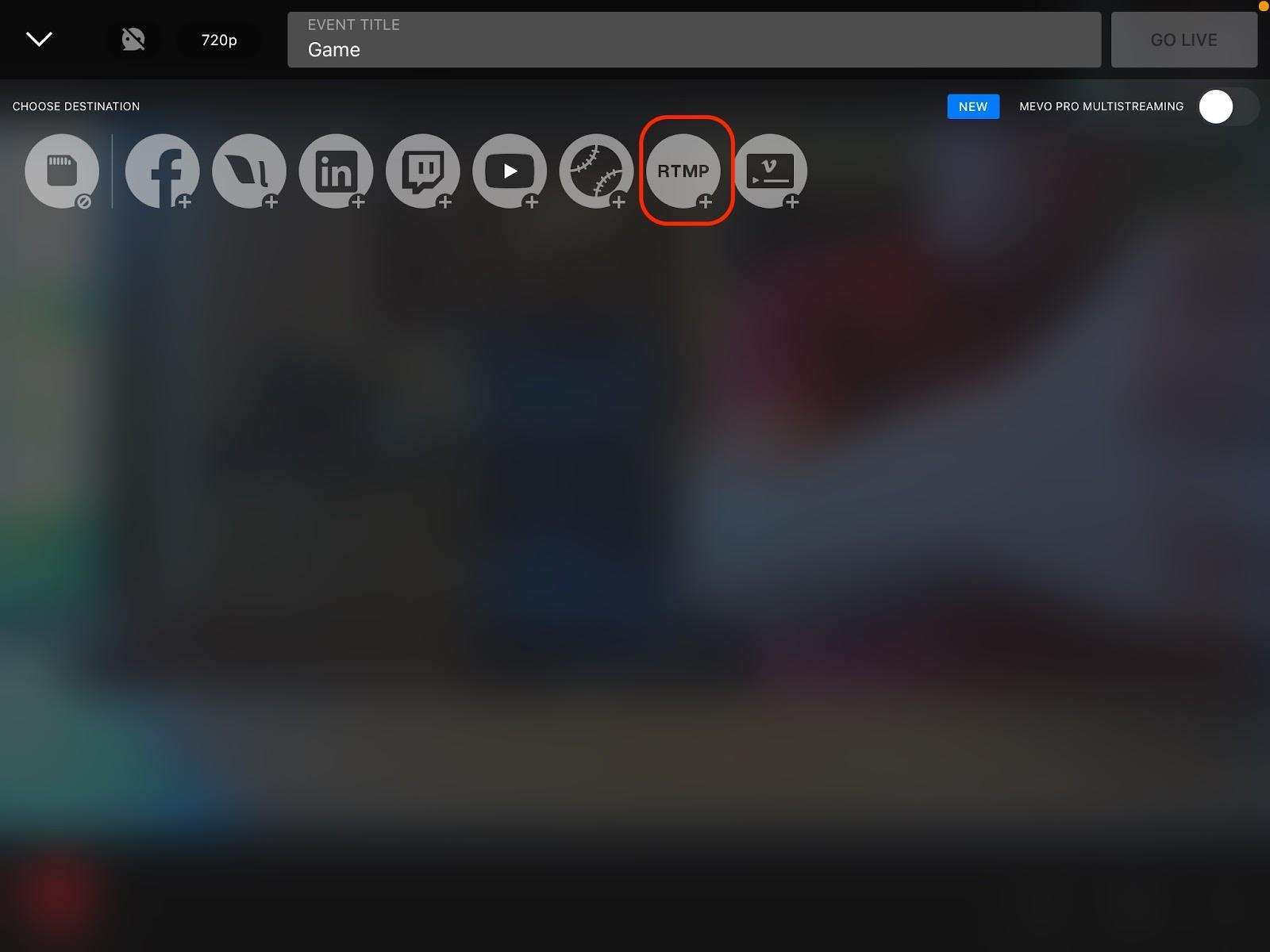
Make any final camera position adjustments
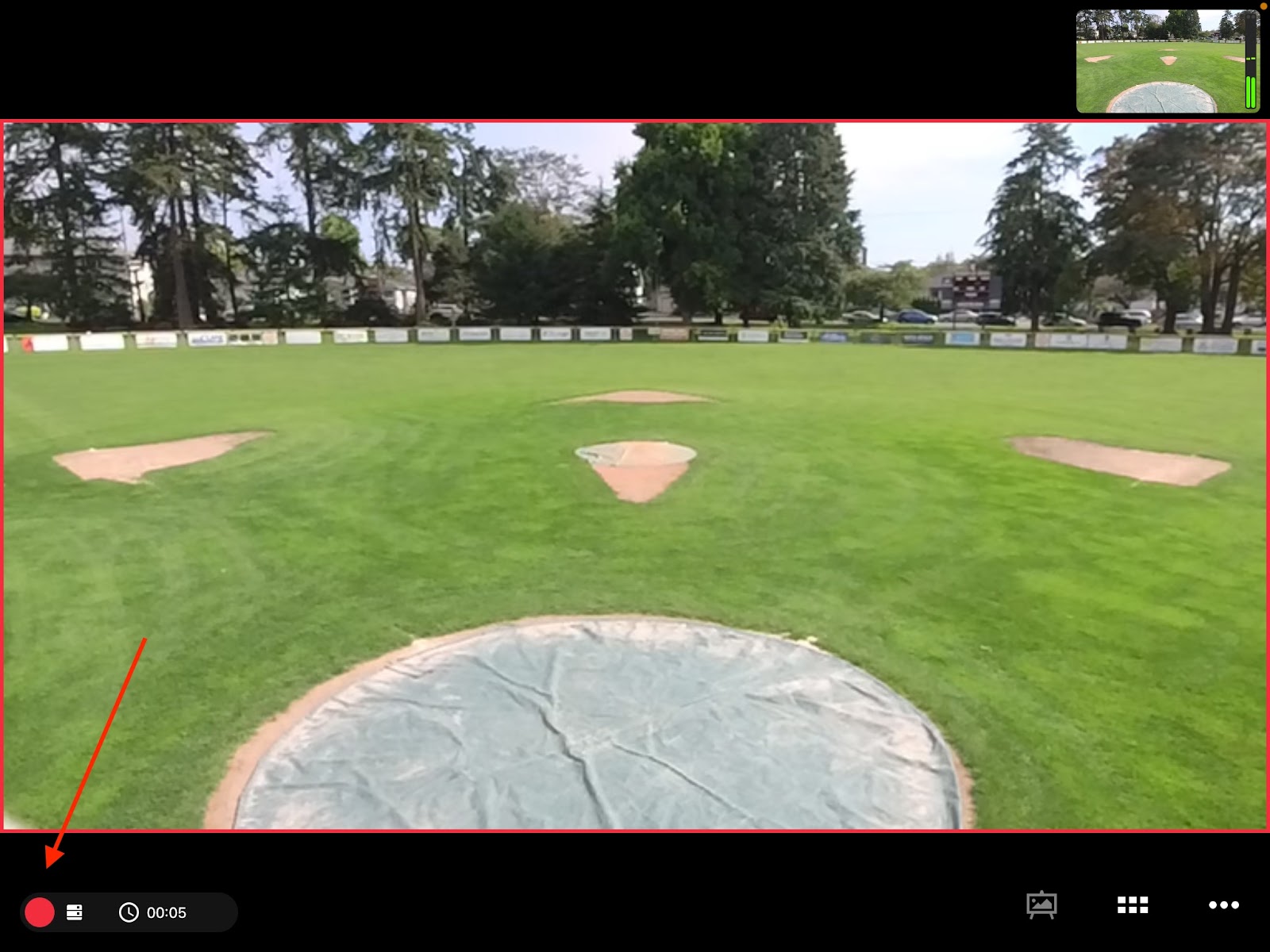
If you closed the above window before pressing “GO LIVE” then click the red record button in the lower left corner
If needed, pinch to Zoom so the red box is filling the entire field of play (red box is maximized)
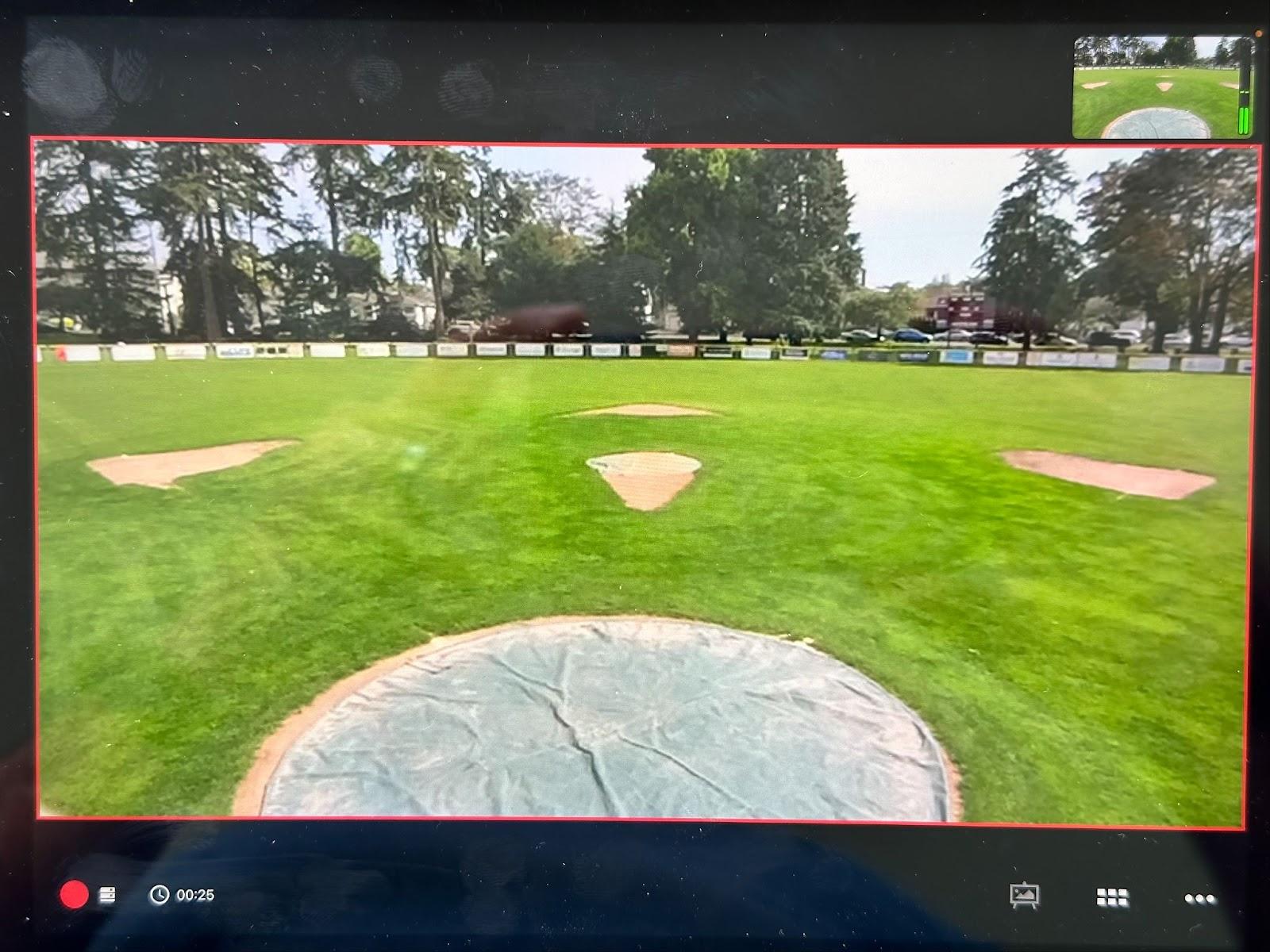
If you see the bright green vertical bars in the top right corner, then the Mic is on, you can skip to Scoring the Game. The mic is located at field level and will not pick up sound from the clubhouse
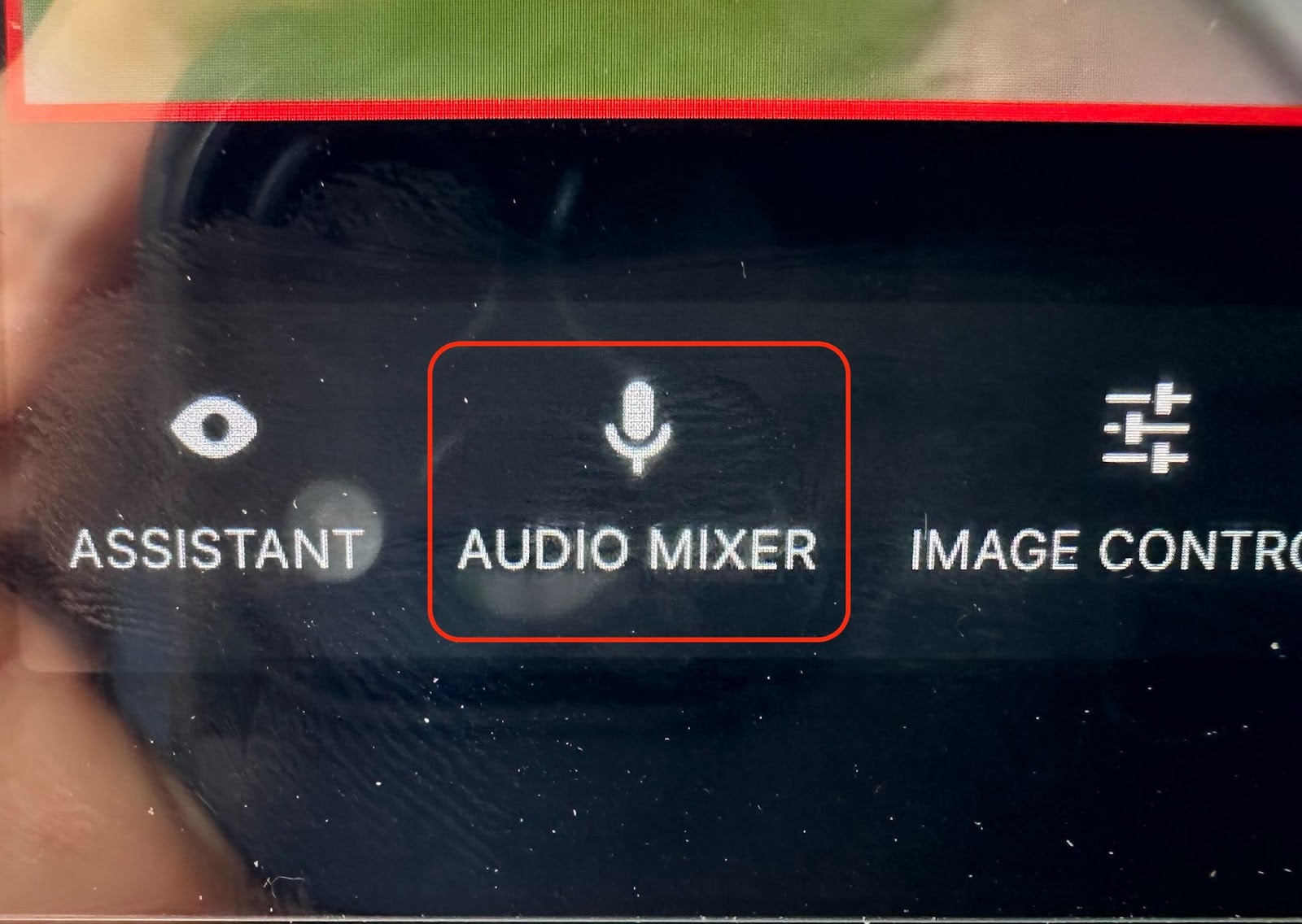
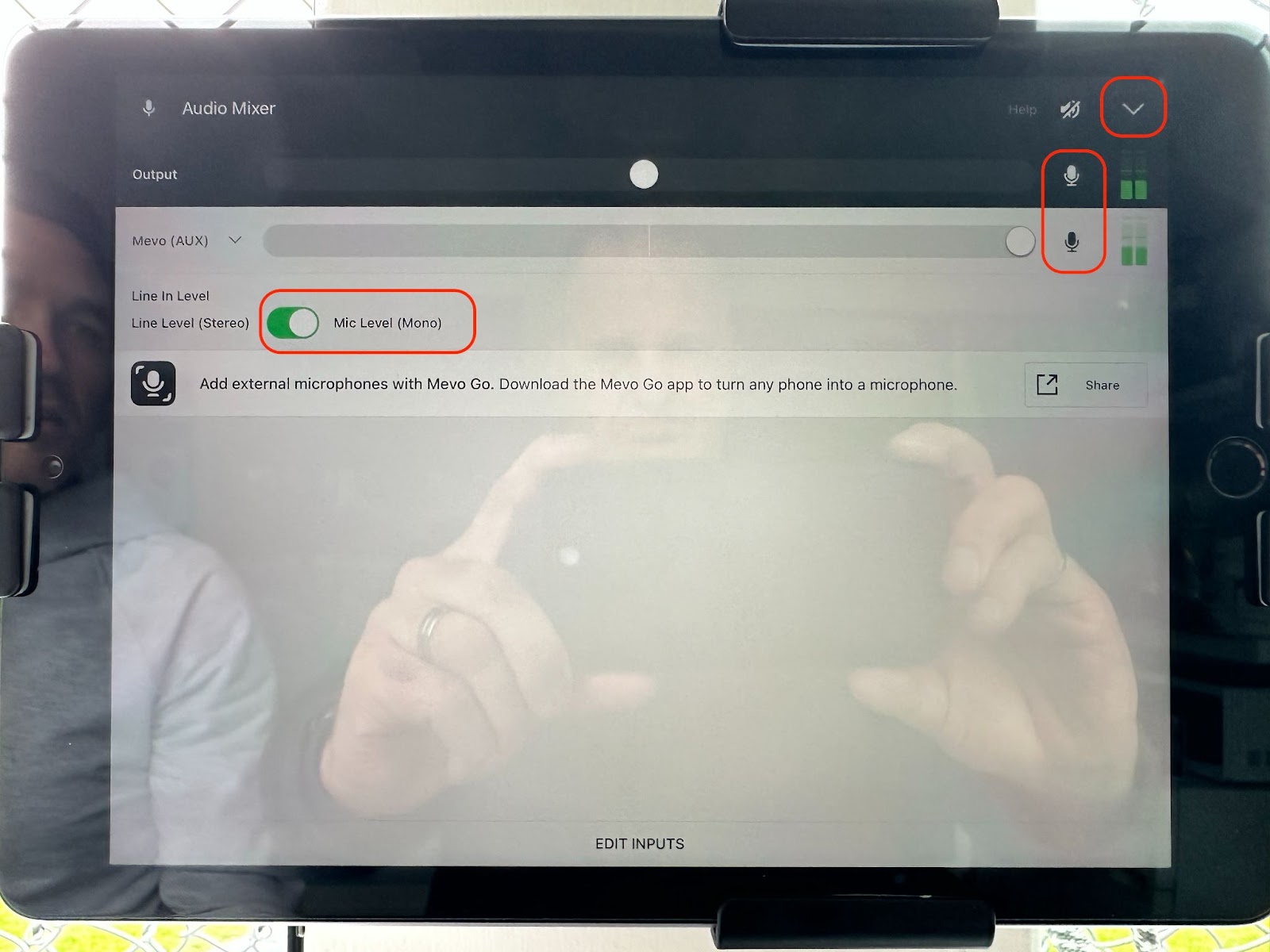
If the green bars (pic above) are not showing, click the 3 dots in the lower right, click on Audio Mixer in the lower left
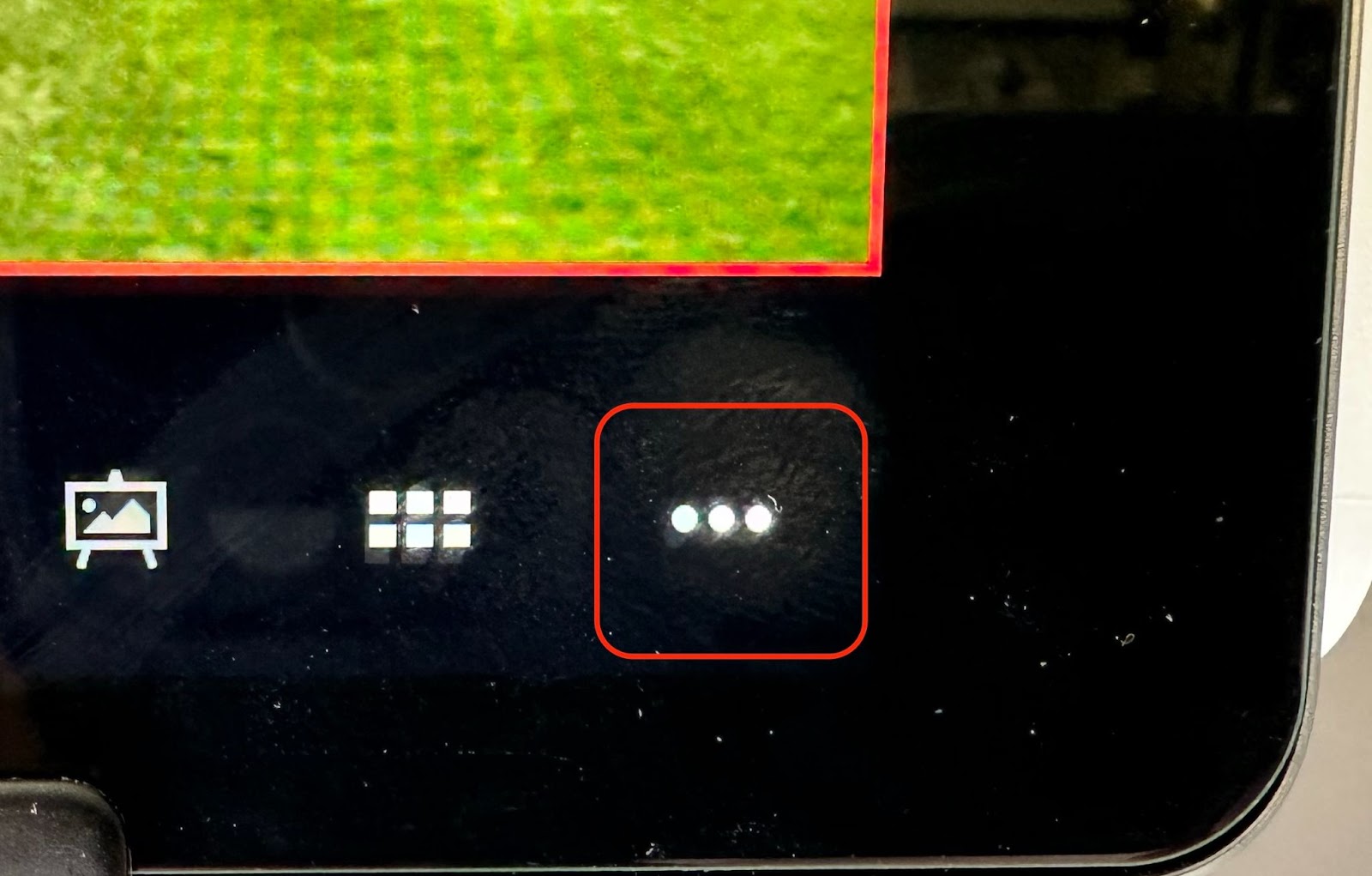
Make sure the Mic is ON in both locations, and Mic Level (Mono) is selected. Click the down arrow to close the audio settings
Scoring the Game
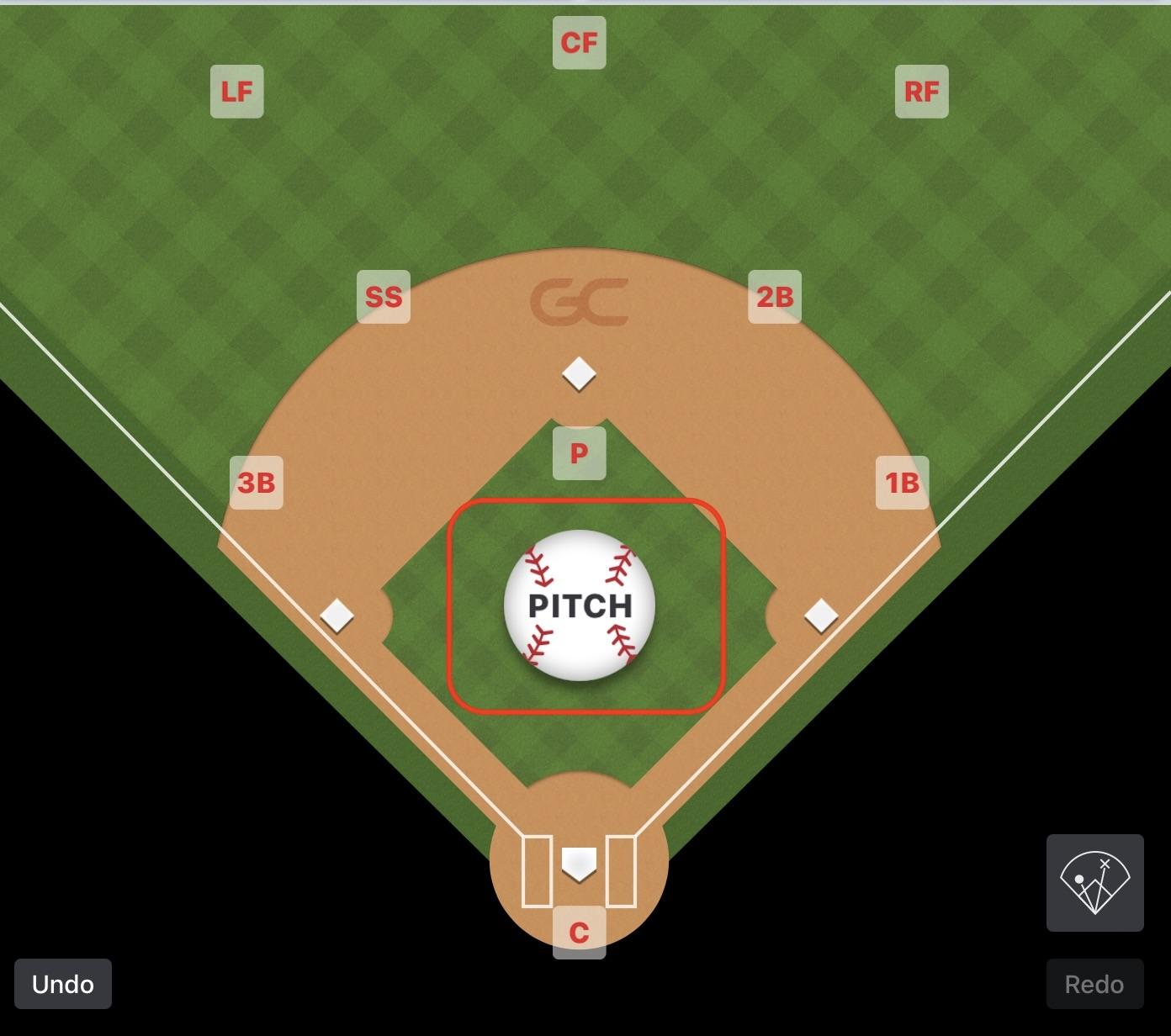
Start scoring the game by clicking on the Pitch button and selecting the outcome of the pitch.
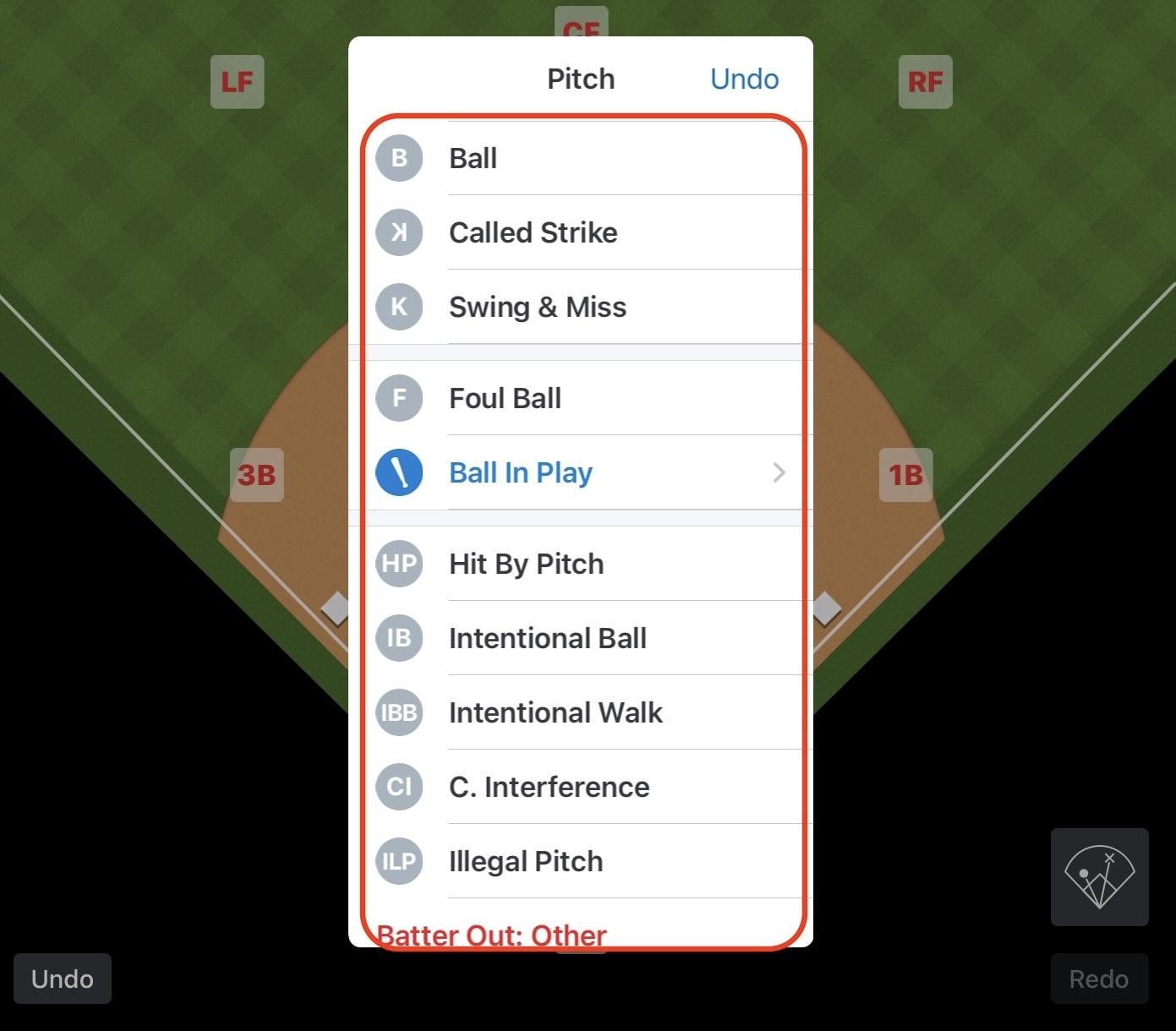
Follow all the scorekeeping training here: https://gc.com/gcu/scorekeeping-baseball-softball
Or scan the QR Code:

Remember you can practice scorekeeping on your own phone or tablet when you first open the GC app - just make sure you are logged out.
IMPORTANT NOTES:
- In Minors we will NOT be tracking errors. For example: if Tom hits the ball and Jack throws it to 1st base and the ball is not catchable (i.e. it's thrown wide or high), or if the 1st base player catches and drops it, this play will be scored as a hit / Single, and not an error.
- In Minors: If Tom hits the ball and Jerry throws it to first and it’s an overthrow, or what would normally be considered an error, score it as a SINGLE and then drag Tom to second base, third base, home (as required) and count those as “stolen bases on last play”.
- In Majors we WILL be tracking errors. Click on Pitch, select the hit type, select Error. If more than 1 person was involved in the error, select & drag the first person who fielded the ball, then select & select the second person (if there was a second), then select Done. Then choose who committed the error (if more than 1 person).
- At the end of each inning:
- If you are scoring a BH vs BH team, you will need to adjust the players in the field positions by clicking on the position and selecting the correct player.
- If you are scoring an Interlock game there is no need to update the opposing teams players.
- In Rookie Minors this is not needed
- If the play gets complicated (ie a hit, multiple throws, multiple base runners etc etc) follow the play and score it on the iPad afterward the play is complete. Speak with anyone else in the clubhouse to assist. Do not hesitate to call down to the Umpire to ask for some time to complete your scoring before the next pitch.
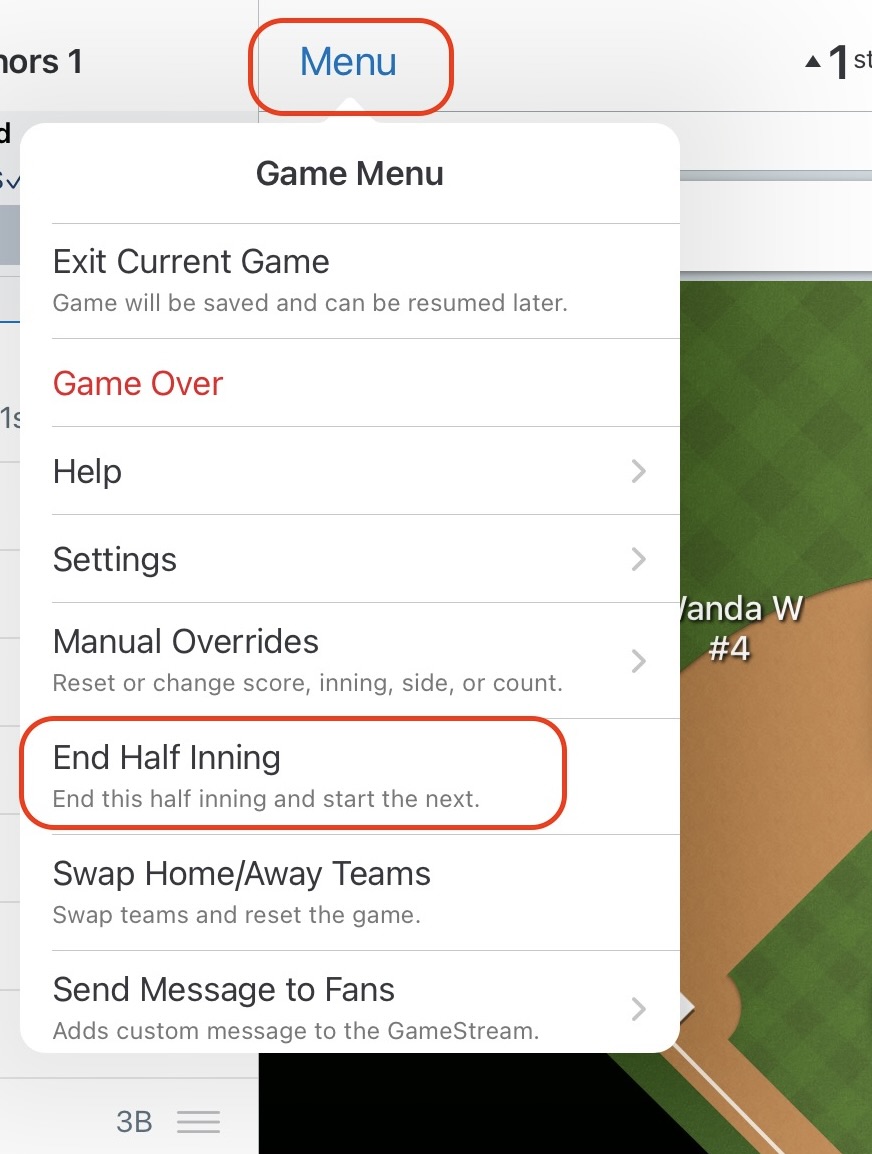
- If the end of the inning is reached because the batting team has reached their maximum runs (ex 3 for Minors, 4 for Majors), click on Menu then End Half Inning.
At the End of the Game - IMPORTANT!
On the Scorekeeper iPad:
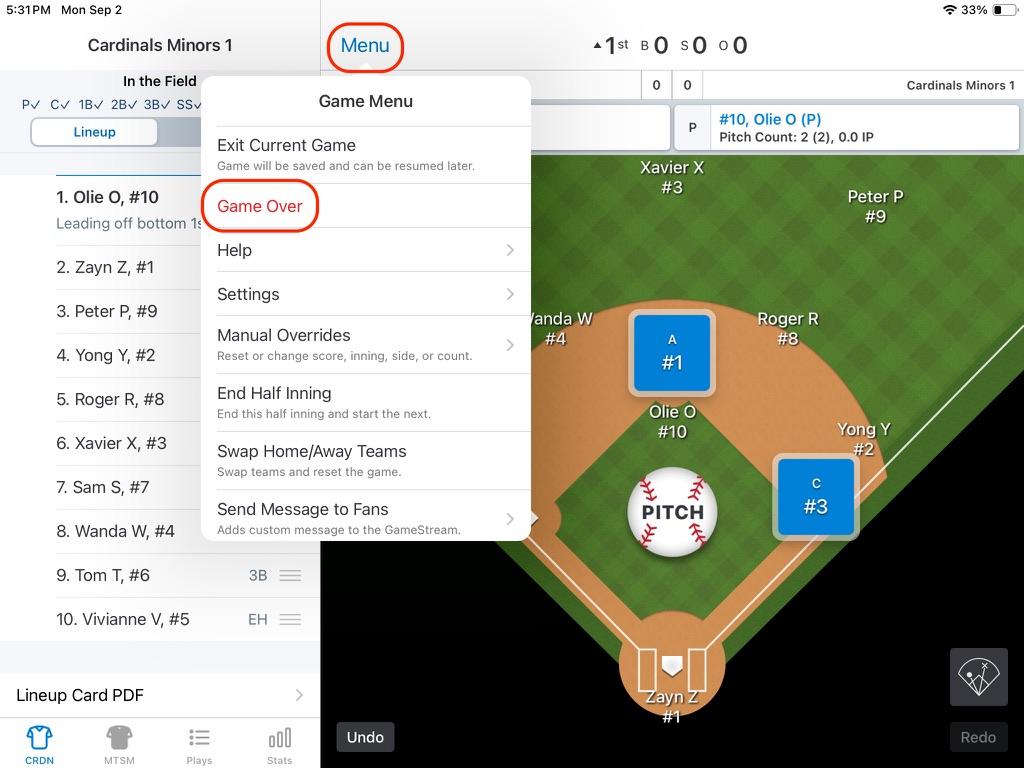
- Click on Menu
- Click on Game Over
- Click on Skip & Finalize Game
- Exit Game
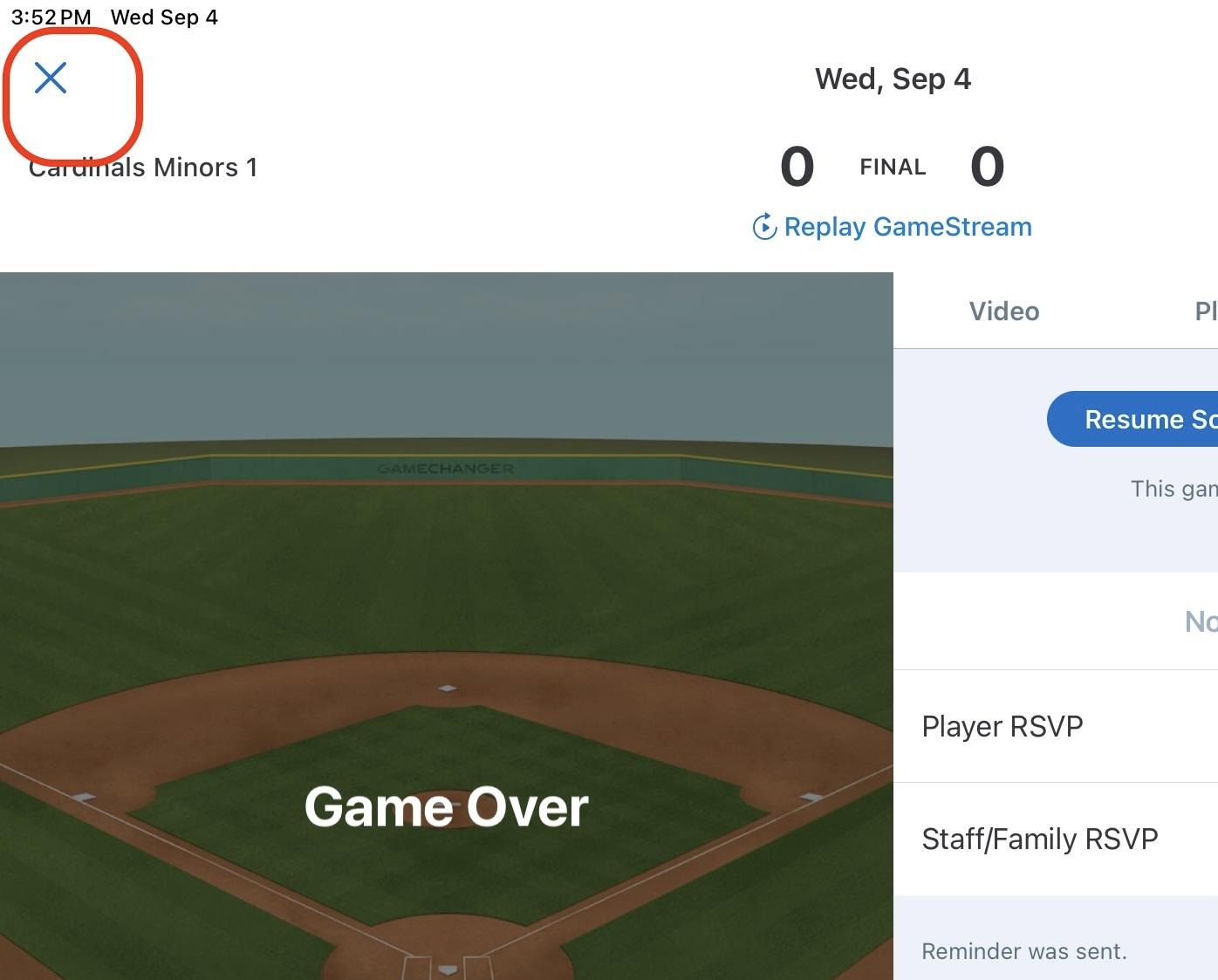
- Click on the X in the top left corner
- On the game page, click the X to get back to the home screen.
On the Streaming iPad:
- Click the red record button in the bottom left corner and then slide to stop
- Double click the iPad home button and flick the Mevo app window up to hard close it so it’s ready for the next game.
Closing Up - IMPORTANT!
If there is no game after yours, remove the camera, close the window, place the camera and the Scorekeeper iPad in the black case and return it to the drawer in the umpire area. Lock the drawer.
Place the green GameChanger binder back on the shelf
None of the gear is to be removed from the clubhouse without permission from David Spence, UIC
Entering your game score in TeamSnap
If your game was scored Head to Head the Scorekeeper or Manager from the winning team should enter the score into TeamSnap.
Open TeamSnap on your phone and select your game.
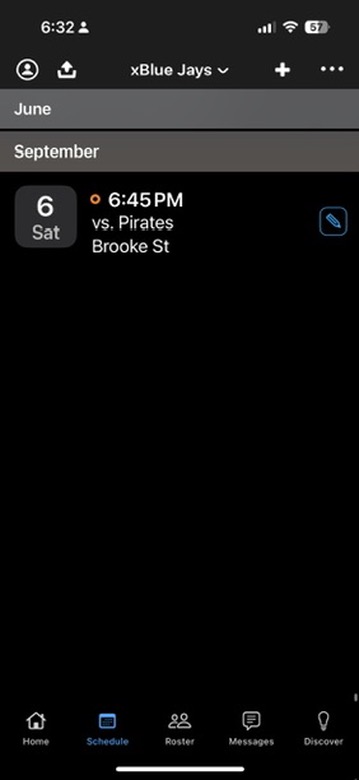
Click on either Game in Progress or Enter Results, and enter the final score.
<end of document>